English translation
8. Build Your First AI Model with Dify
AI Article Decision Snapshot
Turn the lesson into workflow, model, budget, and security checks before choosing tools.
Use this quick snapshot before leaving the article. It keeps the next search tied to practical AI software, model/API, cost, privacy, and implementation questions.
Workflow fit
Identify the real job behind the article: coding, research, document review, support, analytics, content, or internal automation.
Model or tool decision
Decide whether the next step is a software shortlist, an AI tool comparison, an API platform choice, or a model benchmark.
Budget and usage signal
Estimate seats, API calls, prompt volume, retries, review time, and fallback work before assuming the workflow is cheap.
Security and privacy review
Check whether source code, customer data, private documents, prompts, logs, or embeddings will enter the AI workflow.
When building your first model-based application, avoid jumping straight into multi-turn customer support or complex agents. Instead, begin with a small, well-scoped task: one with clear inputs, concise outputs, and easily verifiable results. This approach helps you grasp Dify’s core workflow more intuitively.
A great starting point is classifying customer feedback into one of three predefined labels. It has fixed input format, a finite label set, and unambiguous correctness criteria—making it far more suitable than open-ended text generation for validating whether the system behaves predictably and controllably.
In the previous article, we introduced Dify’s fundamentals: its interface, core features, and how to create a project. Now, we’ll dive deeper into building your first AI model using Dify—through a series of straightforward, actionable steps. Let’s get started!
Choose a Model Type
Dify supports multiple model types—including text generation, image generation, and conversational agents. Before creating your first AI model, clarify the task you want the model to perform. For instance, if your goal is to generate descriptive product copy, select Text Generation as your model type.
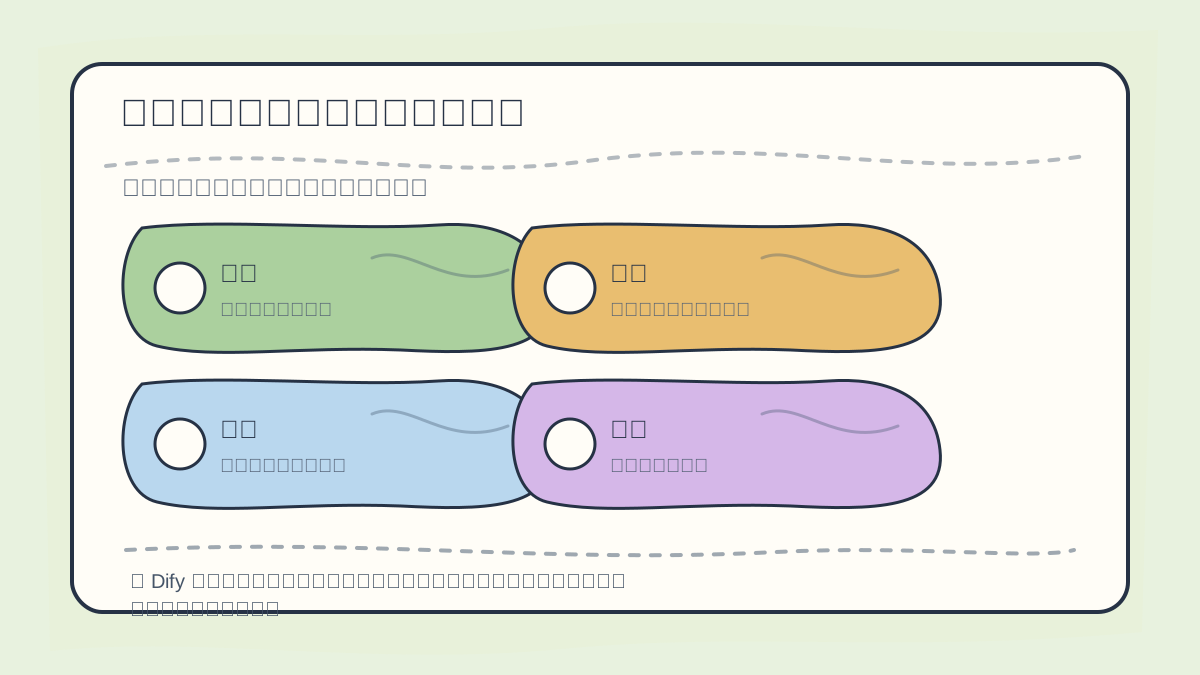
When creating your first model application in Dify, begin by defining five key elements:
- User input format
- Desired output format
- Model configuration parameters
- Representative test cases
- Fallback behavior for failure scenarios
Example Selection
- Task: Generate product descriptions
- Model Type: Text generation model
Create a New Model
Once you’ve selected your model type, you’re ready to build the model.
After reading “Create Your First AI Model”, take one minute to reflect:
- Are the core concepts clearly distinguished?
- Can you reproduce each practice step independently?
- Can you restate the key conclusions in your own words?
Step 1: Log in to Dify
Open Dify in your browser and ensure you’re logged into your account. If you don’t yet have an account, sign up quickly and complete login.
Step 2: Create a New Project
- On the dashboard, click the New Project button.
- Name your project—for example: “Product Description Generator”.
- Select the appropriate project type, matching your chosen model category.
Step 3: Add an AI Model
- After successfully creating the project, click Add Model, then select AI Model.
- From the options presented, choose your previously selected model type—for example, Text Generation Model.
Configure Input and Output
When setting up your model, explicitly define both the input structure and expected output format.
Input Configuration
Provide sufficient context so the model can produce meaningful, relevant output. For example:
Input Example:
- Product Name: SuperWidget
- Key Features: Efficient, eco-friendly, easy to use
Output Configuration
Specify the desired style and structure of the generated output. For example:
Output Example:
“Introducing SuperWidget: the newly-designed, efficient, and eco-friendly solution that simplifies your life!”
Train the Model
Once input and output are configured, proceed to train the model. Dify offers a streamlined, no-code training experience.
- Click the Train Model button.
- Monitor training progress in real time. You may optionally use built-in sample data to accelerate convergence.
- Upon completion, Dify automatically updates the model’s status and deploys the trained version.
Important Notes
- High-quality input data significantly improves generation quality—curate carefully.
- Consider iterative training (e.g., refining prompts or adding examples across multiple rounds) to progressively enhance performance.
Test and Refine the Model
After training completes, rigorously test the model—and iterate as needed.
Testing the Model
- Enter representative input data (e.g., a new product name and features).
- Click Generate, then review the model’s output.
Refining the Model
If outputs fall short of expectations, return to the model configuration screen to adjust input examples, fine-tune instructions, or augment training data.
By this point, summarize “Create Your First AI Model” into a concise reflection table: first outline the main workflow, then validate it using a small, concrete task.
After finishing “Create Your First AI Model”, try walking through the entire process with one simple example. Then assess which steps you can now execute confidently—without guidance.
Summary
In this tutorial, we walked through the end-to-end process of building your first AI model in Dify: selecting a model type, configuring inputs and outputs, training the model, and testing and refining its behavior. Remember: high-quality inputs and thoughtful training practices are foundational to strong generation performance.
In the next article, we’ll explore how to configure and fine-tune model parameters—unlocking even greater control and precision over your AI’s outputs. Stay tuned for more in-depth Dify tutorials!
Apply This Lesson
Turn this article into AI software, model, API, and security decisions.
English Article FAQ
Use this article as evidence before choosing AI tools
How should I use this AI Tutorials article?
Use it as the implementation or learning layer, then connect the idea to AI software buyer guides, tool comparisons, benchmarks, API choices, and security checks before making a production decision.
Is this English article different from the Chinese original?
The English edition is localized for global AI readers while preserving the original diagrams, screenshots, prompts, code examples, and source context from the Chinese article.
What should I read after 8. Build Your First AI Model with Dify?
Continue with AI Software Buyer Guides, AI Tools Workbench, Best AI Coding Agents, AI Model Benchmarks, OpenAI vs Anthropic API, or LLM Security Tools depending on the decision you need to make.
Can this article alone choose an AI product or model?
No. Treat the article as evidence and context, then validate fit with pricing, privacy requirements, integration effort, benchmark results, workflow tests, and fallback planning.
Continue