English translation
DeepSeek Now Supports Direct Export to Word, PDF, and Excel with One-Click Download
AI Article Decision Snapshot
Turn the lesson into workflow, model, budget, and security checks before choosing tools.
Use this quick snapshot before leaving the article. It keeps the next search tied to practical AI software, model/API, cost, privacy, and implementation questions.
Workflow fit
Identify the real job behind the article: coding, research, document review, support, analytics, content, or internal automation.
Model or tool decision
Decide whether the next step is a software shortlist, an AI tool comparison, an API platform choice, or a model benchmark.
Budget and usage signal
Estimate seats, API calls, prompt volume, retries, review time, and fallback work before assuming the workflow is cheap.
Security and privacy review
Check whether source code, customer data, private documents, prompts, logs, or embeddings will enter the AI workflow.
Exporting to Word, PDF, and Excel is highly practical—but validation shouldn’t stop at “the file downloads.” Heading hierarchy, table width, page breaks, Chinese font rendering, and mathematical formula display can all significantly impact real-world usability. Especially for documents shared with clients or colleagues, formatting issues directly undermine credibility.
After export, always perform a real-world verification:
- Can the Word document be further edited without corruption?
- Does the PDF render correctly—no garbled text or missing glyphs?
- In Excel, are numeric values preserved as numbers (not text strings)?
Only when these details pass inspection does one-click export truly save time.
Over the past two weeks, we’ve been upgrading DeepSeekMine, our personal knowledge base software. A new installer will launch shortly—and DeepSeekMine now has its own official website, where users can download the software directly. If you’re eager to try it, please wait just a bit longer for the new release—and keep an eye on our upcoming posts.
Approximately one week ago, DeepSeek updated its DeepSeek-R1 model. Users can now generate not only plain-text responses on the official website—but also directly output multimodal files, including Word, PDF, and Excel documents. This article walks through how to generate and export them. Interested readers are encouraged to follow along.
Let’s first examine the result: on the right-hand side, a “Download Word Document” button appears:

Clicking it instantly downloads the corresponding Word file:
1 Exporting to Word with DeepSeek
First, let’s look at the common issue: standard replies often fail to preserve formatting when pasted into Word—many users encounter partial layout corruption.
DeepSeek also supports other widely used formats—including PDF and Excel.
Let’s reproduce the problem: prompt DeepSeek with: “Summarize the MCP Agent—text version with embedded tables.”

Here’s the beginning of the generated response:
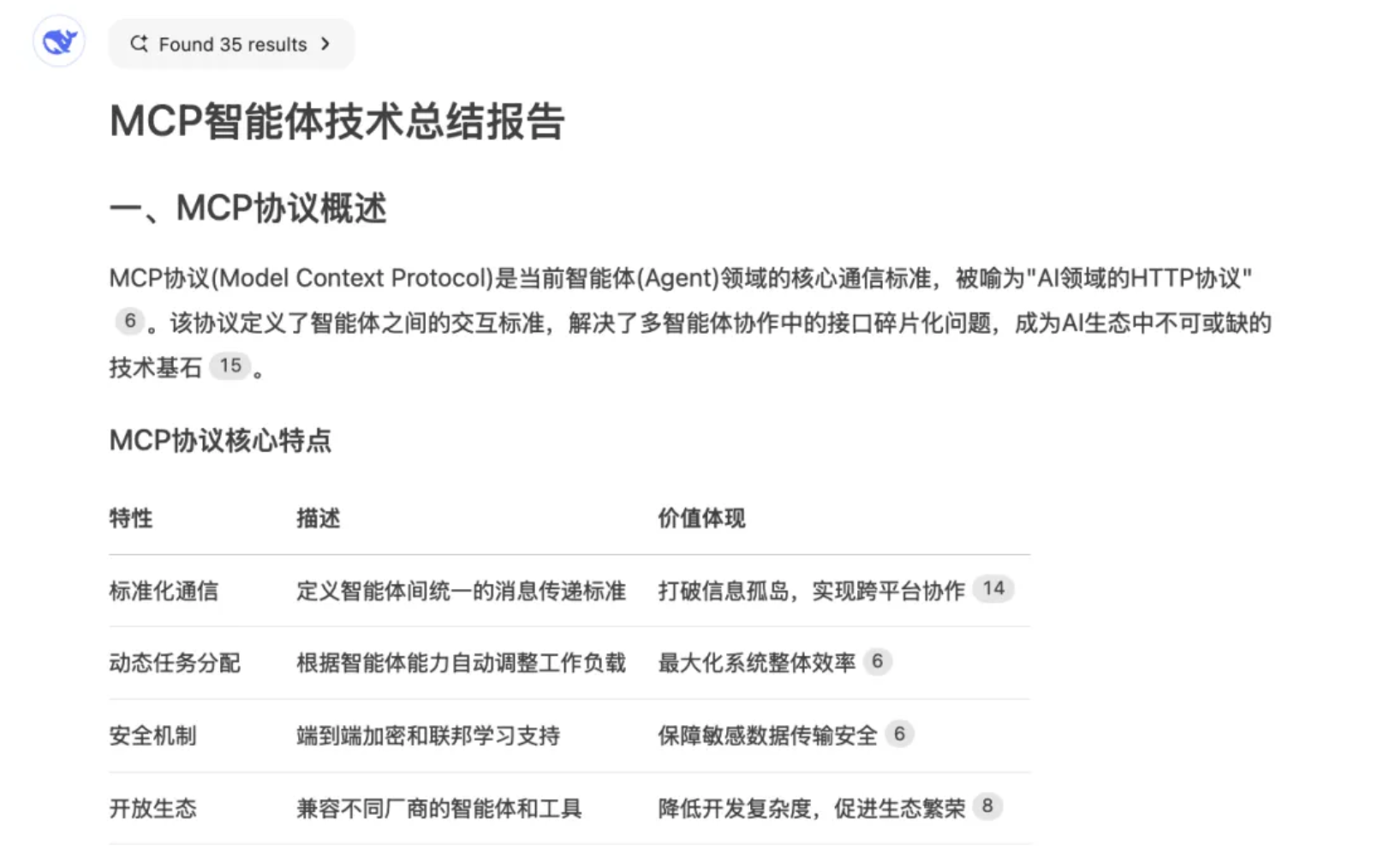
At the end, a copy button appears on the next line (indicated by the arrow):
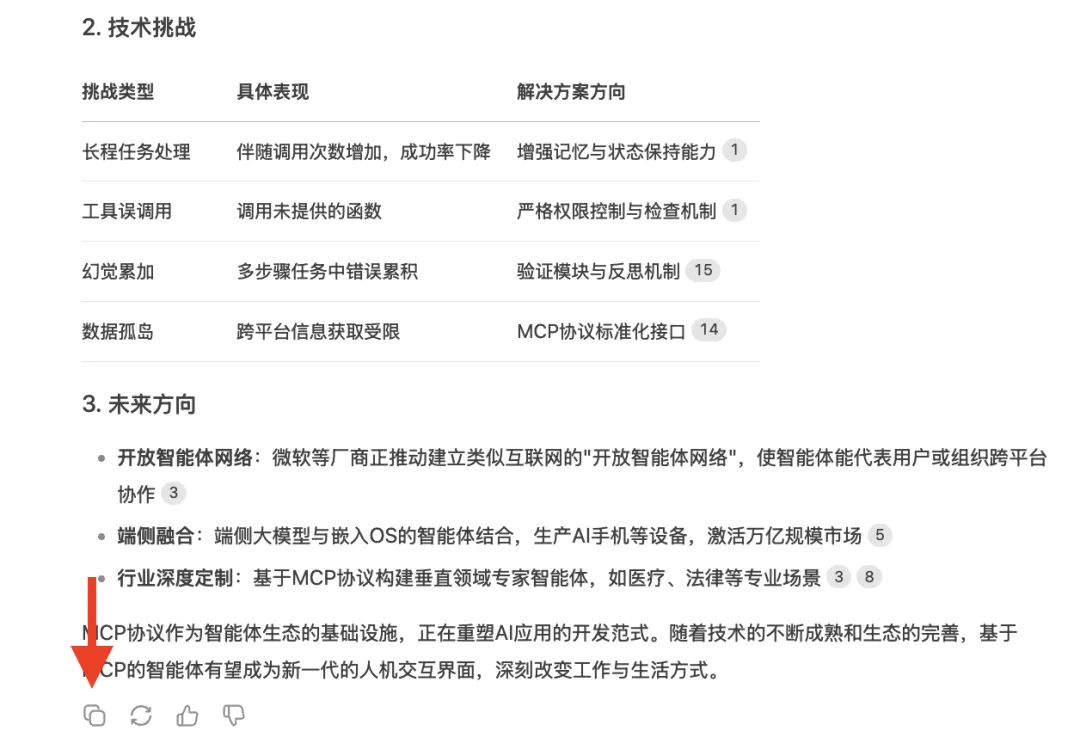
Clicking that button copies the raw Markdown source—including syntax markers like #, **, and |—into your clipboard:
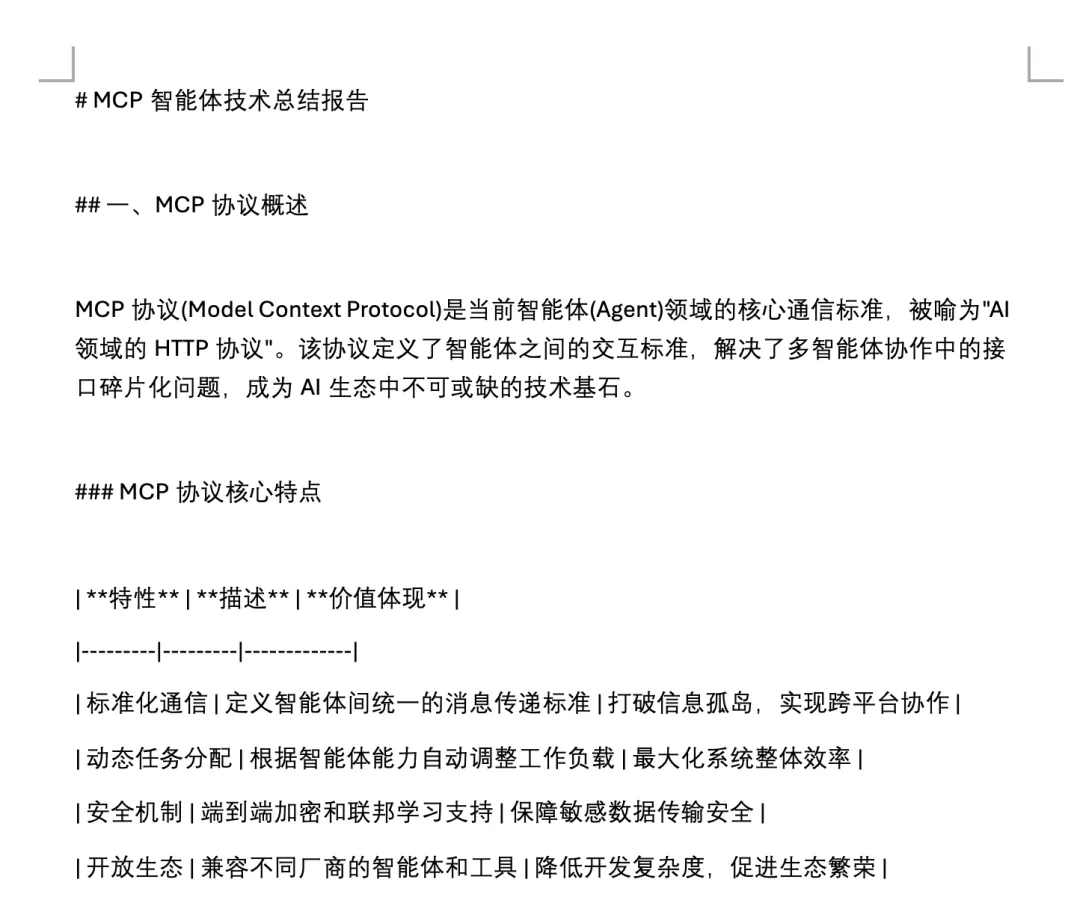
This is clearly not what we want.
Alternatively, you can manually select and copy content:
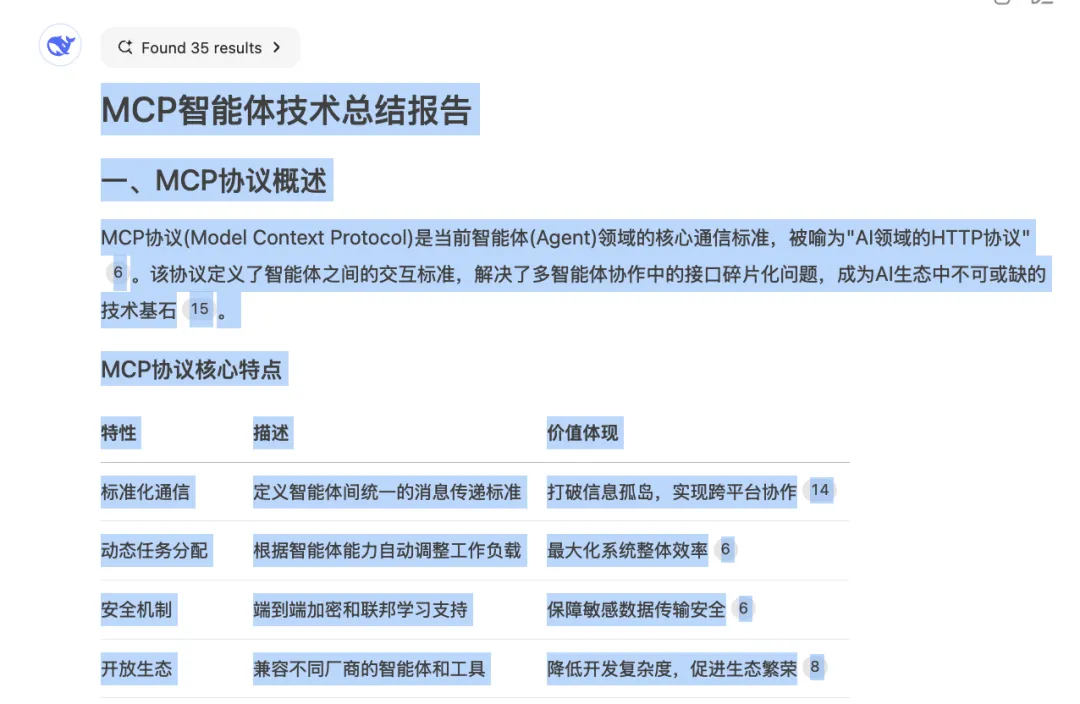
However, this method suffers from two main drawbacks:
- Line breaks break mid-sentence, disrupting paragraph flow;
- Citation superscripts (e.g.,
[1]) get copied unintentionally, cluttering the final document:
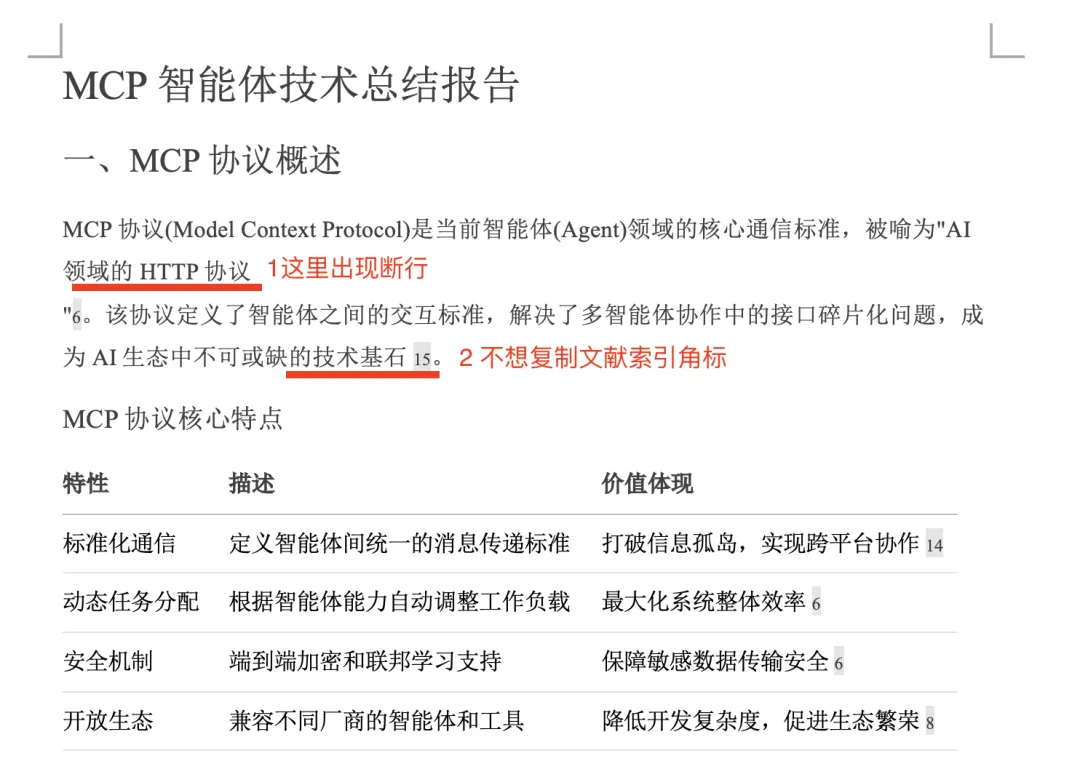
In short, manual copying remains inconvenient and error-prone. The real solution involves just two steps—and one well-crafted prompt.
Core principle: Instruct DeepSeek to output HTML-formatted content compatible with the target format, and embed a dedicated download button (as HTML) for that format.
Let’s test this approach. Revise the prompt to: “Summarize MCP Agent development in Chinese. Output full Word-compatible HTML code. Place a ‘Download Word’ button at the top.”

DeepSeek then generates clean HTML markup:
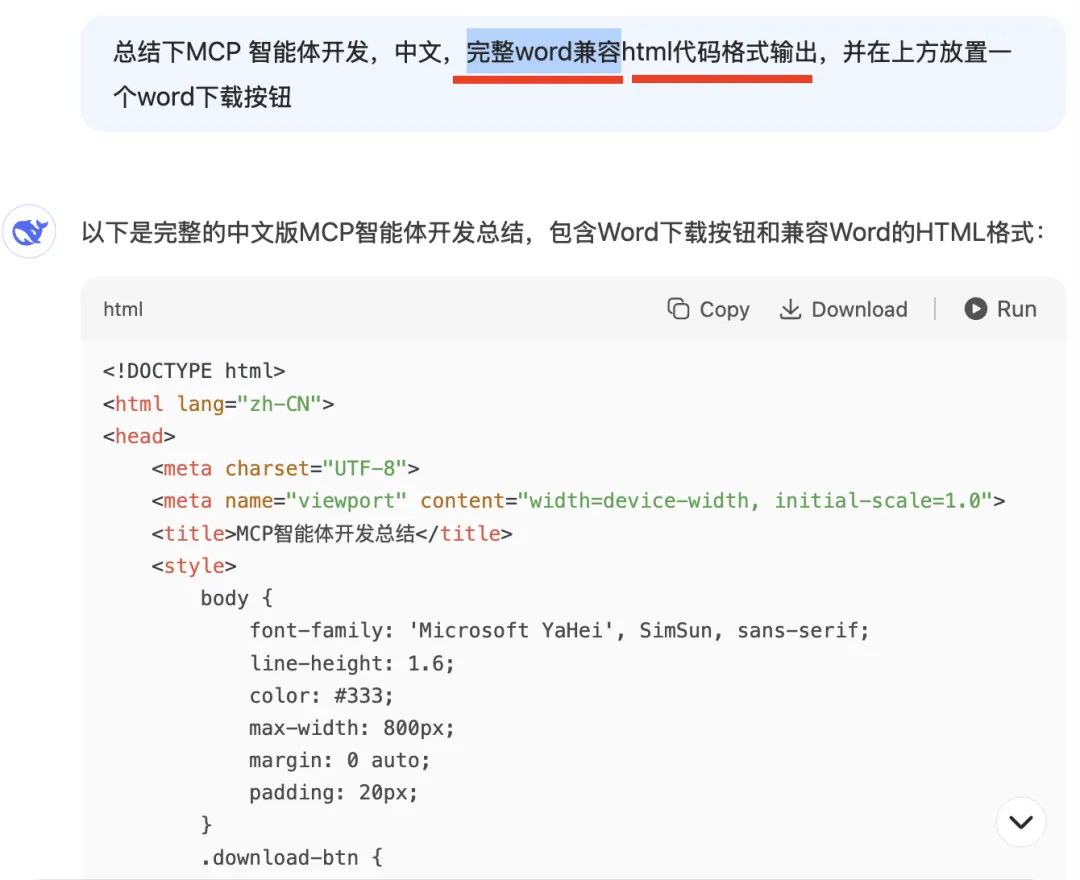
Once generation completes, a Run button appears in the top-right corner. Click it—the right panel renders the HTML preview and displays a functional “Download Word Document” button:
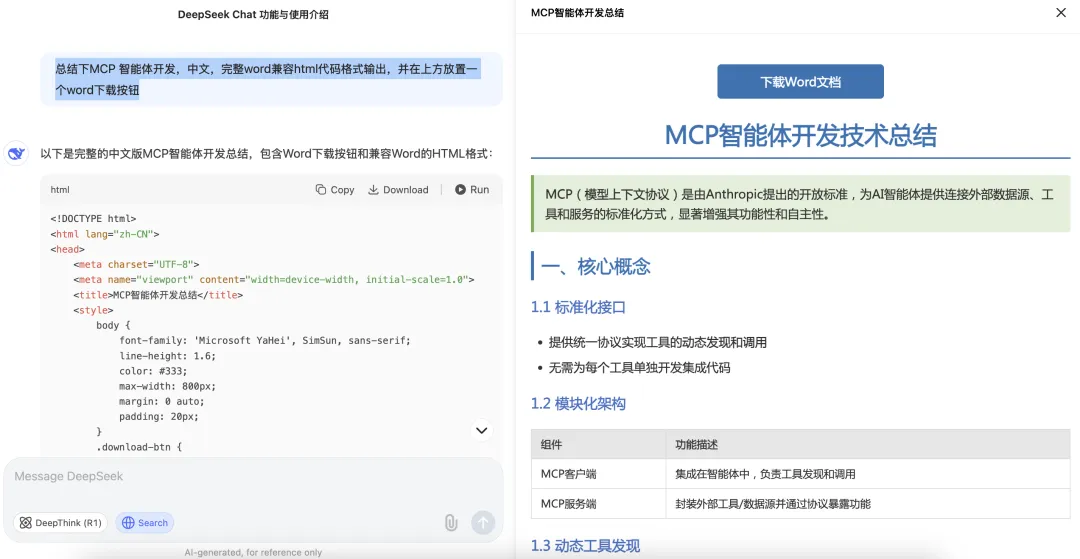
The exported Word file preserves formatting correctly—and excludes citation superscripts entirely. The problem is solved efficiently and reliably.
2 Exporting to PDF
Once you master Word export, the same logic applies seamlessly to PDF and Excel.
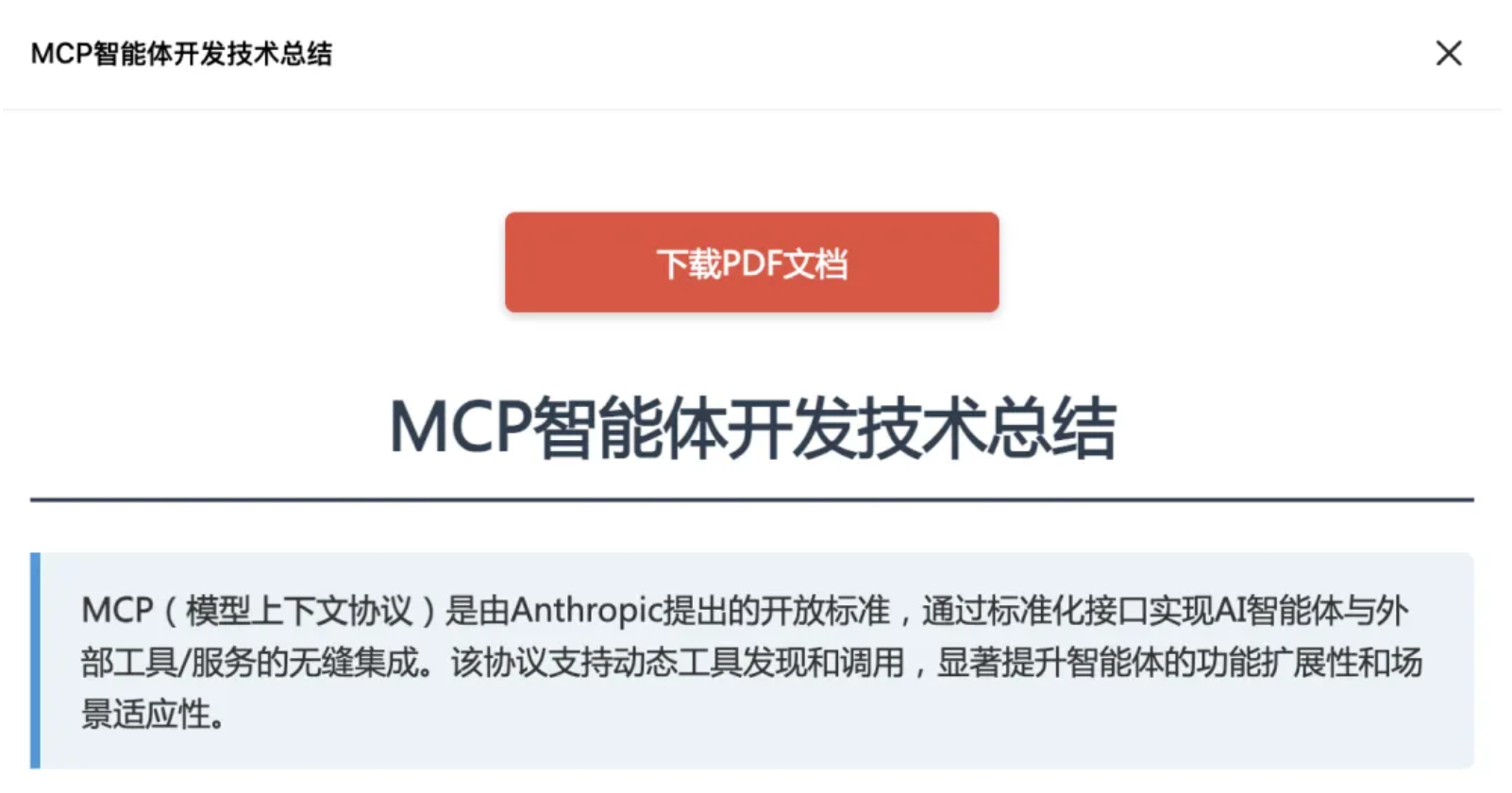
Below is a concise step-by-step guide for generating and exporting each format.
Full prompt for PDF export: “Summarize MCP Agent development in Chinese. Output full PDF-compatible HTML code. Place a ‘Download PDF’ button at the top.”
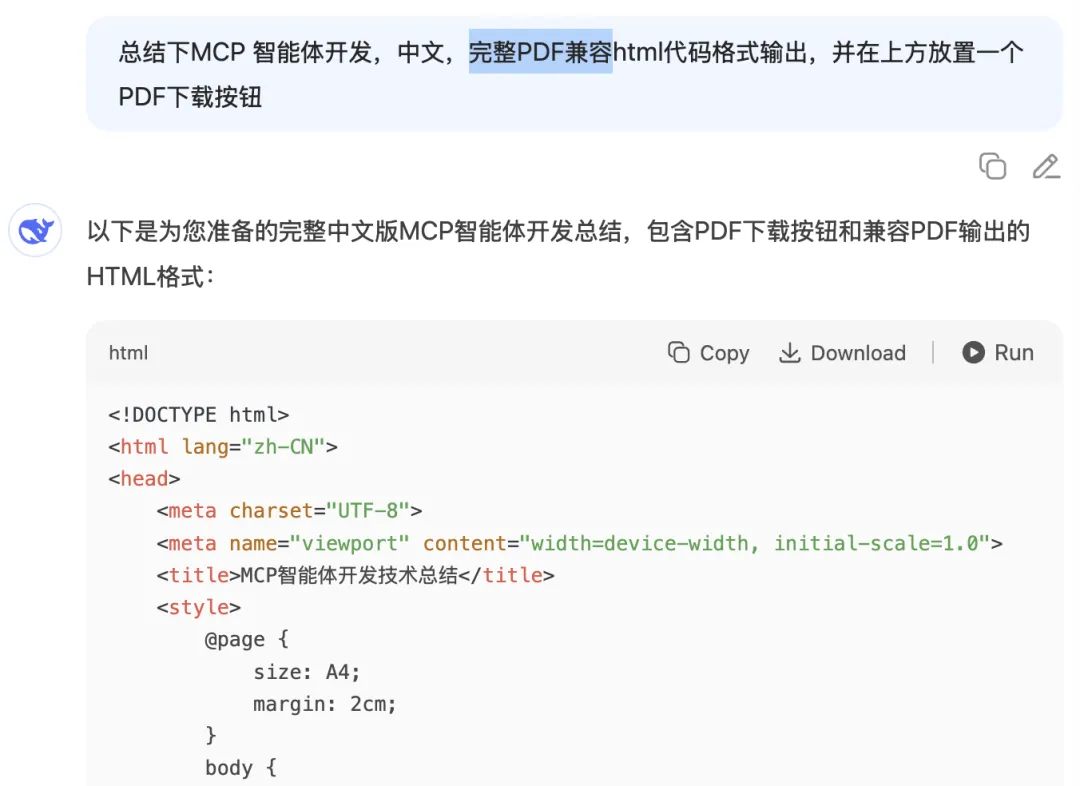
Click Run, and the “Download PDF” button appears on the right:
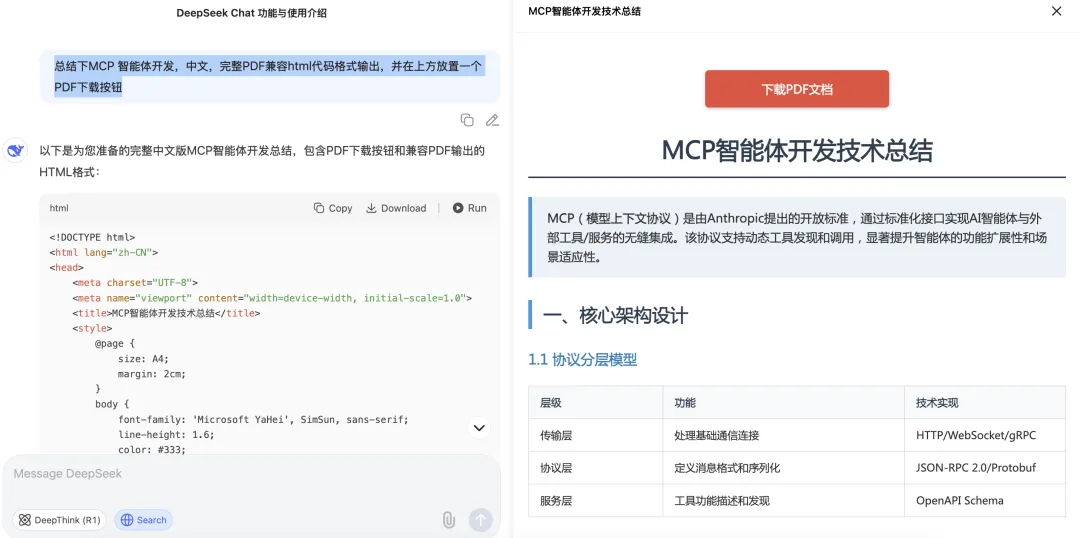
DeepSeek can also extract all tables from the preceding text into a single Excel file. Use this prompt: “Extract all tables above into Excel. Output full Excel-compatible HTML code. Place a ‘Download Excel’ button at the top.”
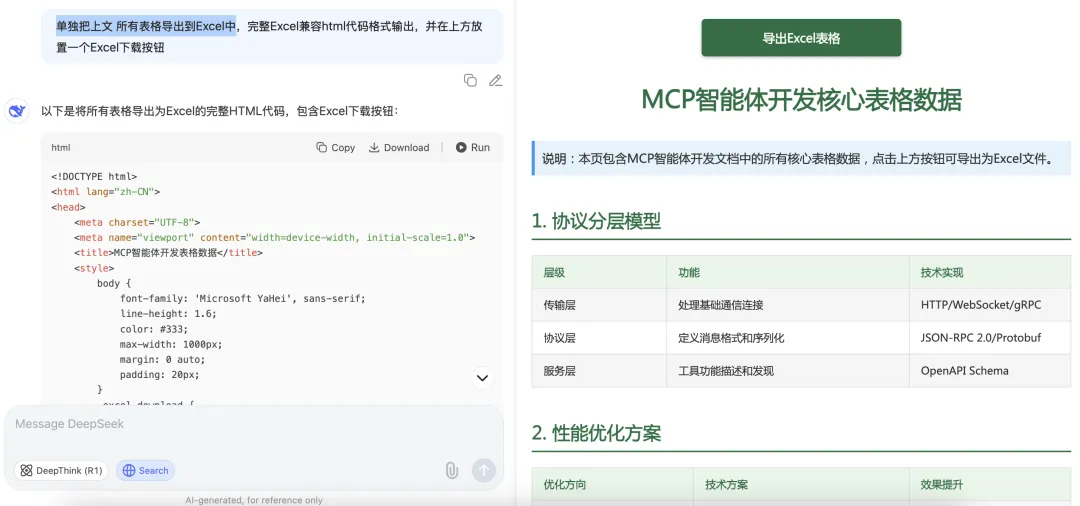
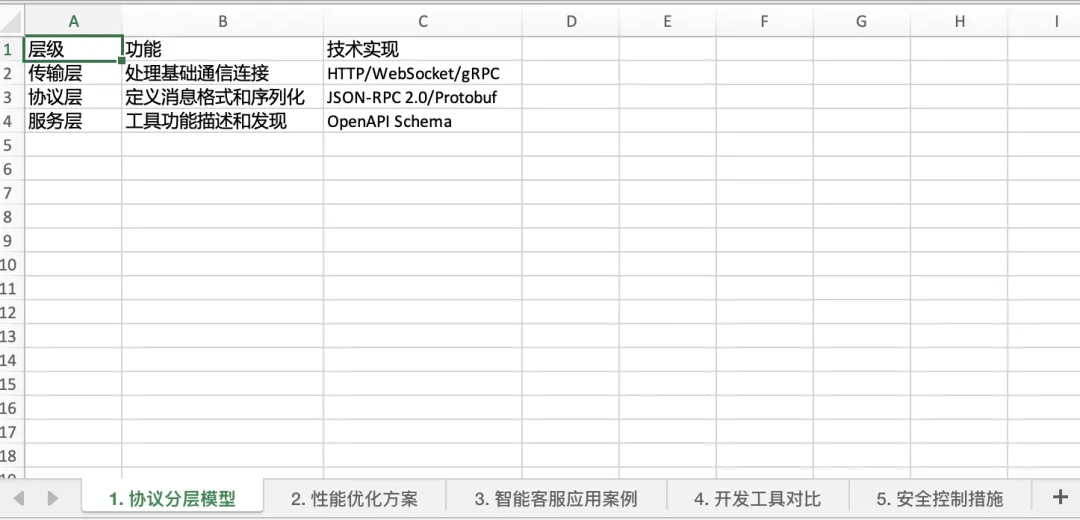
Click the resulting Excel download button—and open the file. All five tables appear cleanly consolidated:
Beyond static documents, DeepSeek can even generate rich, interactive HTML interfaces—feel free to experiment further.
3 DeepSeek-R1 v0528 Release
Following the May 28 update, DeepSeek-R1’s reasoning capabilities have improved substantially—surpassing full-strength Qwen3. While still slightly behind O3 and Gemini 2.5 (May 6), it now sits remarkably close. Notably, O3 and Gemini 2.5 remain the current gold standard for reasoning performance:
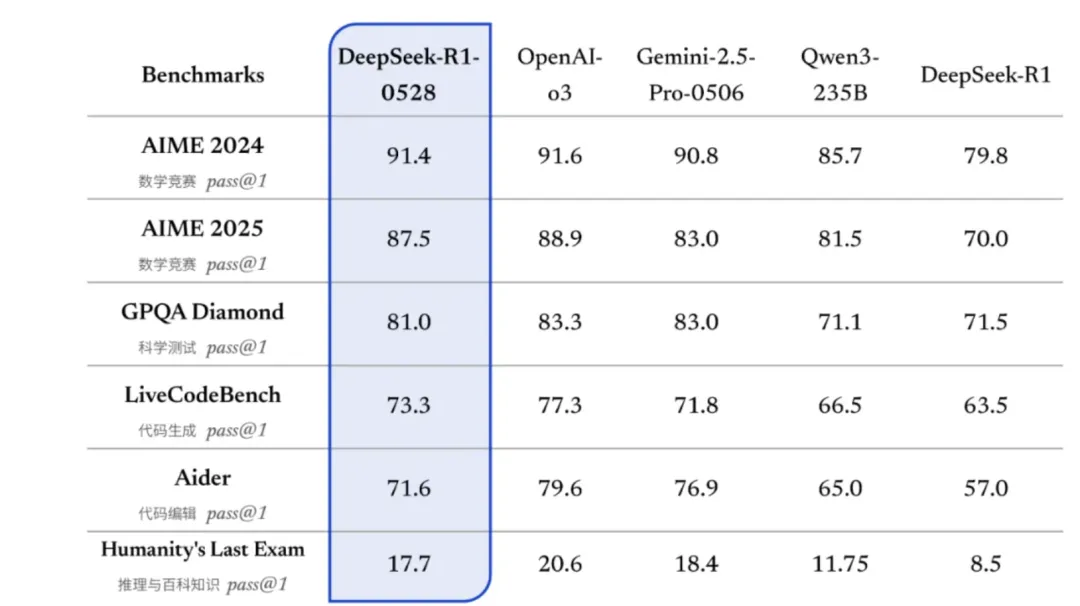
The v0528 update emphasizes enhanced post-training—specifically, expanded Chain-of-Thought (CoT) path exploration during inference. According to DeepSeek’s documentation, on the AIME 2025 math competition benchmark:
- Accuracy improved by 17.5% over the prior R1 version;
- Average token usage per problem rose from 12K tokens (old R1) to 23K tokens (v0528).
That’s nearly double the compute cost—for AIME-level problems, this represents a significant resource investment.
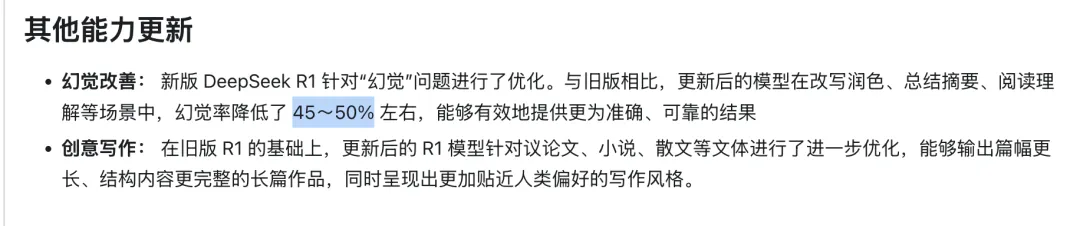
Regarding hallucination: the new R1 reduces hallucinated outputs by ~45%:
Yet when retesting with our earlier “MCP Agent development” query, the model still produced factual errors:
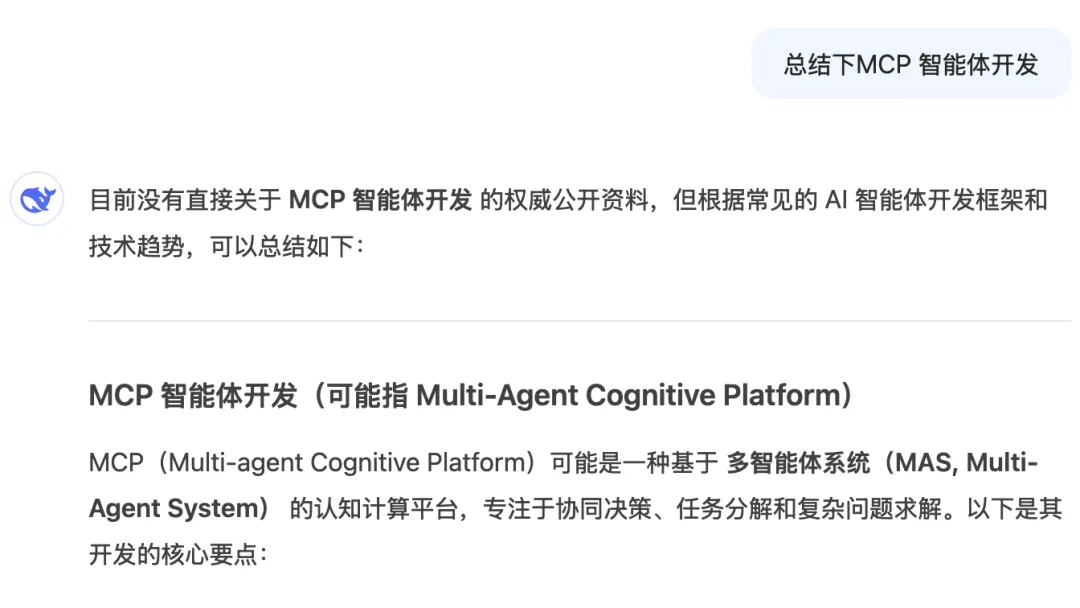
This isn’t unique to DeepSeek—hallucination remains an unsolved fundamental challenge across LLMs. Large language models generate text by predicting the next most probable token, not by “understanding truth.” They rely on statistical co-occurrence patterns learned from training data—making them inherently prone to fabricating plausible-sounding content when context or grounding knowledge is weak.
To meaningfully reduce hallucination today, the most effective strategy remains integrating search and RAG (Retrieval-Augmented Generation)—injecting verified, up-to-date facts before generation. For high-stakes, formal use cases, always prefer Search + RAG—it’s simply the most reliable safeguard:

Final Summary
This article addresses the longstanding pain point of manual copy-paste: inconsistent formatting, stray characters, and broken structure.
We demonstrated how to leverage DeepSeek-R1 to generate downloadable Word, PDF, and Excel files natively—using a single, simple prompt to produce HTML previews with embedded download buttons. This dramatically improves both export efficiency and cross-format compatibility.
In the v0528 update, DeepSeek-R1 delivers major reasoning gains—especially in math—where token consumption doubled and accuracy jumped sharply, while hallucination dropped ~45%. Yet real-world testing confirms hallucinations persist. Therefore, for mission-critical applications, combining DeepSeek with search and RAG remains the best practice to ensure factual reliability.
If you found this guide useful, feel free to follow us—and give us a triple tap: 👍 Like, 🔄 Share, and 👀 View. Bonus points if you add a ⭐️ star! Thank you for reading—and see you in the next post.
Total: 2,138 words, 21 images.
Apply This Lesson
Turn this article into AI software, model, API, and security decisions.
English Article FAQ
Use this article as evidence before choosing AI tools
How should I use this AI Tutorials article?
Use it as the implementation or learning layer, then connect the idea to AI software buyer guides, tool comparisons, benchmarks, API choices, and security checks before making a production decision.
Is this English article different from the Chinese original?
The English edition is localized for global AI readers while preserving the original diagrams, screenshots, prompts, code examples, and source context from the Chinese article.
What should I read after DeepSeek Now Supports Direct Export to Word, PDF, and Excel with One-Click Download?
Continue with AI Software Buyer Guides, AI Tools Workbench, Best AI Coding Agents, AI Model Benchmarks, OpenAI vs Anthropic API, or LLM Security Tools depending on the decision you need to make.
Can this article alone choose an AI product or model?
No. Treat the article as evidence and context, then validate fit with pricing, privacy requirements, integration effort, benchmark results, workflow tests, and fallback planning.
Continue