English translation
7 Skills and Slash Commands: Turn Common Workflows into Custom Shortcuts
AI Article Decision Snapshot
Turn the lesson into workflow, model, budget, and security checks before choosing tools.
Use this quick snapshot before leaving the article. It keeps the next search tied to practical AI software, model/API, cost, privacy, and implementation questions.
Workflow fit
Identify the real job behind the article: coding, research, document review, support, analytics, content, or internal automation.
Model or tool decision
Decide whether the next step is a software shortlist, an AI tool comparison, an API platform choice, or a model benchmark.
Budget and usage signal
Estimate seats, API calls, prompt volume, retries, review time, and fallback work before assuming the workflow is cheap.
Security and privacy review
Check whether source code, customer data, private documents, prompts, logs, or embeddings will enter the AI workflow.
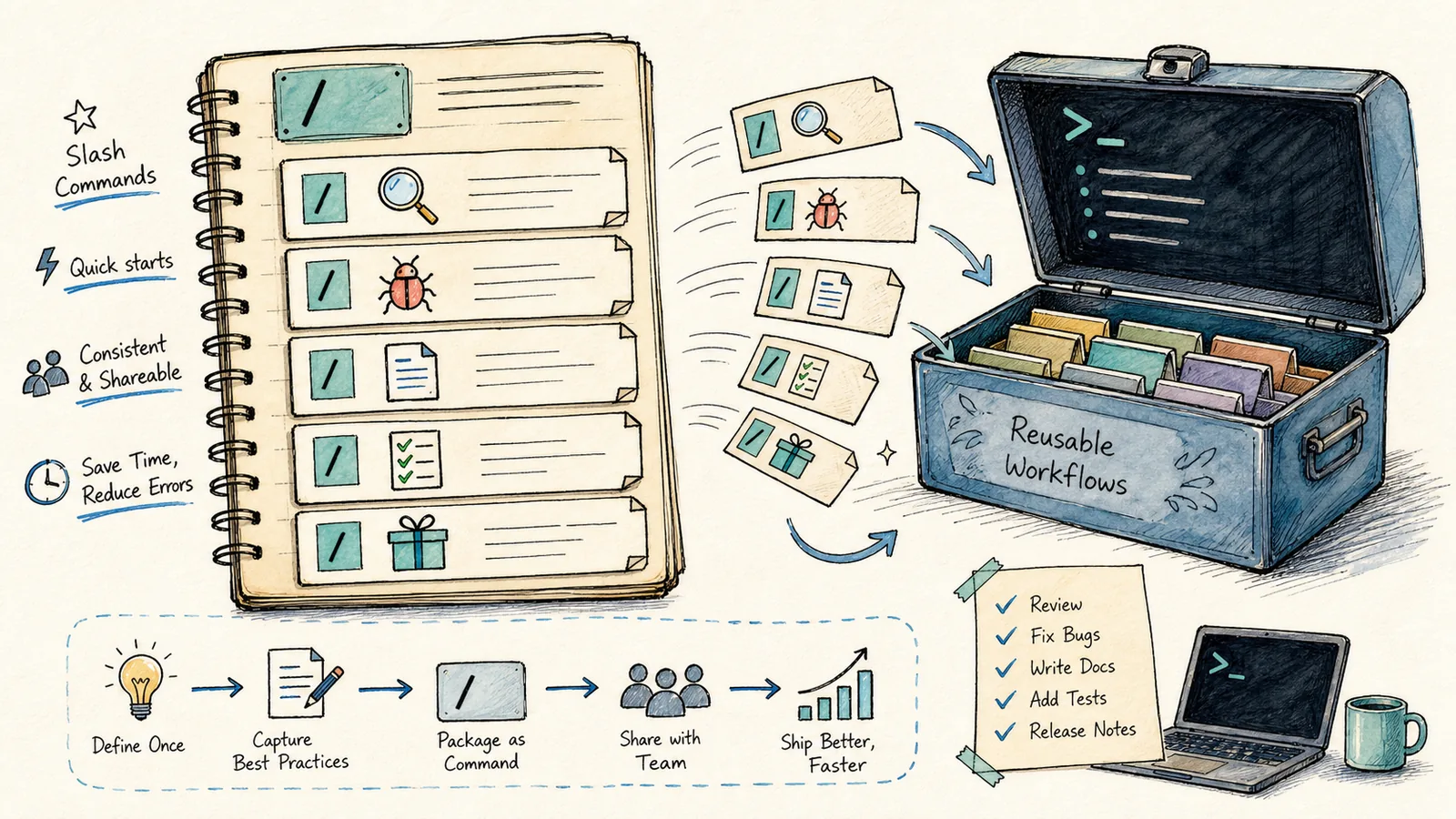
After using Claude Code on several projects, you’ll likely notice yourself repeating the same types of instructions:
“Please summarize this diff.” “Please check for unintended changes.” “Please write a commit message in my preferred format.” “Please scan this page for mobile-specific risks.” “Please rewrite this tutorial to sound more human-written.”
These recurring workflows shouldn’t require manual re-typing every time. With Claude Code, it’s now recommended to codify them as Skills. The legacy .claude/commands/ directory remains functional—but per official documentation, the preferred format is .claude/skills/<name>/SKILL.md. Skills are invoked identically via /name, and support richer auto-triggering logic and companion files.
Slash Commands and Skills are ideal for capturing standardized, repeatable workflows. For example, if your pre-commit routine always involves reviewing diffs, listing risks, running tests, and drafting a commit message—don’t describe it from scratch each time.

We recommend starting with a very small command—not an all-in-one “universal assistant.” Once that minimal command proves stable, gradually incorporate larger workflows: project releases, documentation generation, PR reviews, etc.
Start with summarize-changes
Suppose you want to build a “summarize current changes” skill:
When designing Skills or Slash Commands, begin by identifying tasks that recur frequently—then clearly define their inputs, execution steps, permission boundaries, and success criteria.
mkdir -p .claude/skills/summarize-changes
Then create:
.claude/skills/summarize-changes/SKILL.md
Start simple:
---
description: Summarize current git changes and flag risk. Use when the user asks what changed or wants a commit message.
---
## Current changes
!`git diff HEAD`
You don’t need to absorb every detail of *“Skills and Slash Commands: Turn Your Common Workflows Into Personal Shortcuts”* all at once. Pick one small, actionable problem you can verify hands-on—then use the diagrams and text to fill in conceptual gaps.
## Instructions
Summarize the changes in Chinese.
List risks first.
Then provide one concise commit message.
The most interesting part here is the command injection after !. As documented in the official Skills guide, such dynamic context commands execute before Claude sees the content—and their real output gets injected inline. That means Claude isn’t guessing the diff—it receives the actual changes from your local repository.
What Makes a Good Skill?
A task is well-suited for a Skill if it exhibits three traits:
- You perform it repeatedly.
- It follows consistent, predictable steps.
- It requires project-specific context.
Examples include:
/review-page: Checks copy, mobile responsiveness, and readability./ship-post: Validates Markdown frontmatter, image paths, and word count./safe-deploy: Runsbuild, then inspectsgit diff, then generates a deployment summary./bug-trace: Systematically investigates logs → reproduction steps → related files → hypotheses → verification.
Avoid cramming everything into one monolithic Skill. Each Skill should solve one class of problem—making it easier to test, maintain, and reuse.
Project-Level vs. Personal-Level Skills
Project-level Skills live in:
.claude/skills/<skill-name>/SKILL.md
Ideal for team-shared conventions—e.g., release procedures, code review standards, or testing policies.
Personal-level Skills live in:
~/.claude/skills/<skill-name>/SKILL.md
Best for individual preferences—e.g., your preferred article tone, commit message style, or personal reflection templates.
Legacy slash command files may still reside in .claude/commands/, but for new work, we strongly recommend using Skills instead.
Tips for Writing Effective Skills
Avoid vague prompts like “Please carefully review this.” Instead, specify exactly how output should be structured:
## Output

1. List findings first
2. Include file paths with line numbers where applicable
3. Identify missing tests
4. Suggest the next logical command
When revisiting “Skills and Slash Commands: Turn Your Common Workflows Into Personal Shortcuts,” don’t jump straight into building large-scale systems. First, validate the core flow using a single, simple example.
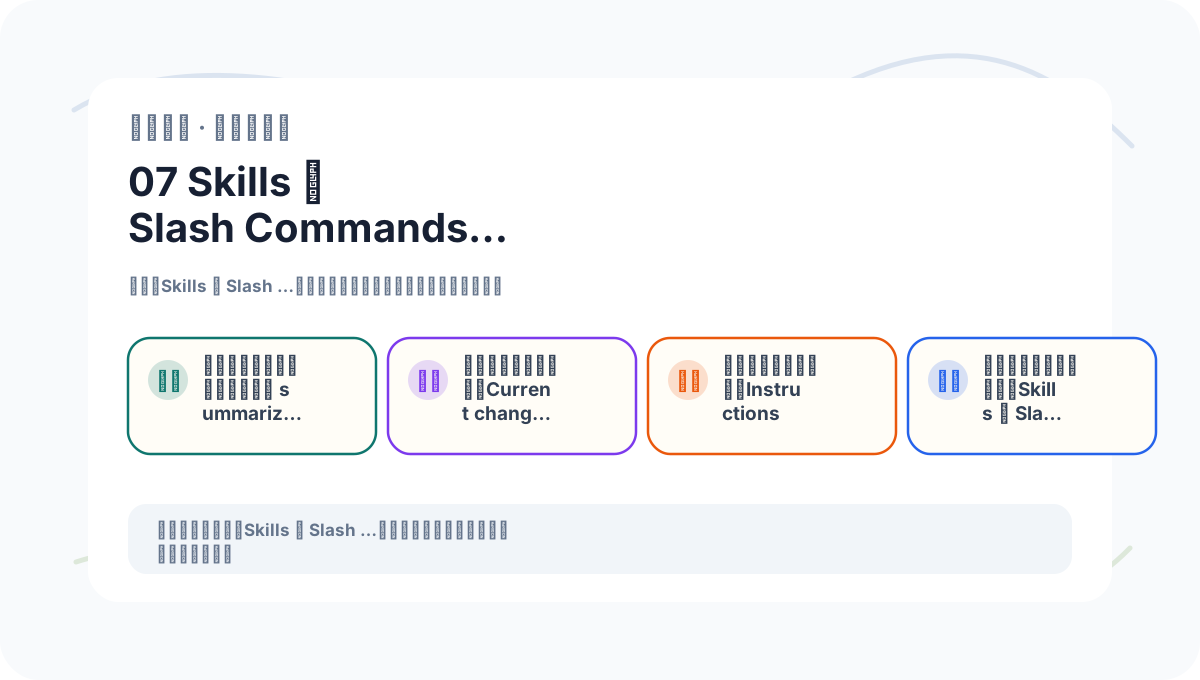
If “Skills and Slash Commands: Turn Your Common Workflows Into Personal Shortcuts” hasn’t fully clicked yet, walk through the four actions on this card again.
That’s how you make Claude Code’s outputs reliable and consistent.
Next up: MCP (Model Control Protocol). While Skills solve “workflow reuse,” MCP solves “connecting external tools and data.”
References:
Apply This Lesson
Turn this article into AI software, model, API, and security decisions.
English Article FAQ
Use this article as evidence before choosing AI tools
How should I use this AI Tutorials article?
Use it as the implementation or learning layer, then connect the idea to AI software buyer guides, tool comparisons, benchmarks, API choices, and security checks before making a production decision.
Is this English article different from the Chinese original?
The English edition is localized for global AI readers while preserving the original diagrams, screenshots, prompts, code examples, and source context from the Chinese article.
What should I read after 7 Skills and Slash Commands: Turn Common Workflows into Custom Shortcuts?
Continue with AI Software Buyer Guides, AI Tools Workbench, Best AI Coding Agents, AI Model Benchmarks, OpenAI vs Anthropic API, or LLM Security Tools depending on the decision you need to make.
Can this article alone choose an AI product or model?
No. Treat the article as evidence and context, then validate fit with pricing, privacy requirements, integration effort, benchmark results, workflow tests, and fallback planning.
Continue