English translation
7 Browser and Computer Use: Enable Codex to See Real Pages for Frontend Debugging
AI Article Decision Snapshot
Turn the lesson into workflow, model, budget, and security checks before choosing tools.
Use this quick snapshot before leaving the article. It keeps the next search tied to practical AI software, model/API, cost, privacy, and implementation questions.
Workflow fit
Identify the real job behind the article: coding, research, document review, support, analytics, content, or internal automation.
Model or tool decision
Decide whether the next step is a software shortlist, an AI tool comparison, an API platform choice, or a model benchmark.
Budget and usage signal
Estimate seats, API calls, prompt volume, retries, review time, and fallback work before assuming the workflow is cheap.
Security and privacy review
Check whether source code, customer data, private documents, prompts, logs, or embeddings will enter the AI workflow.
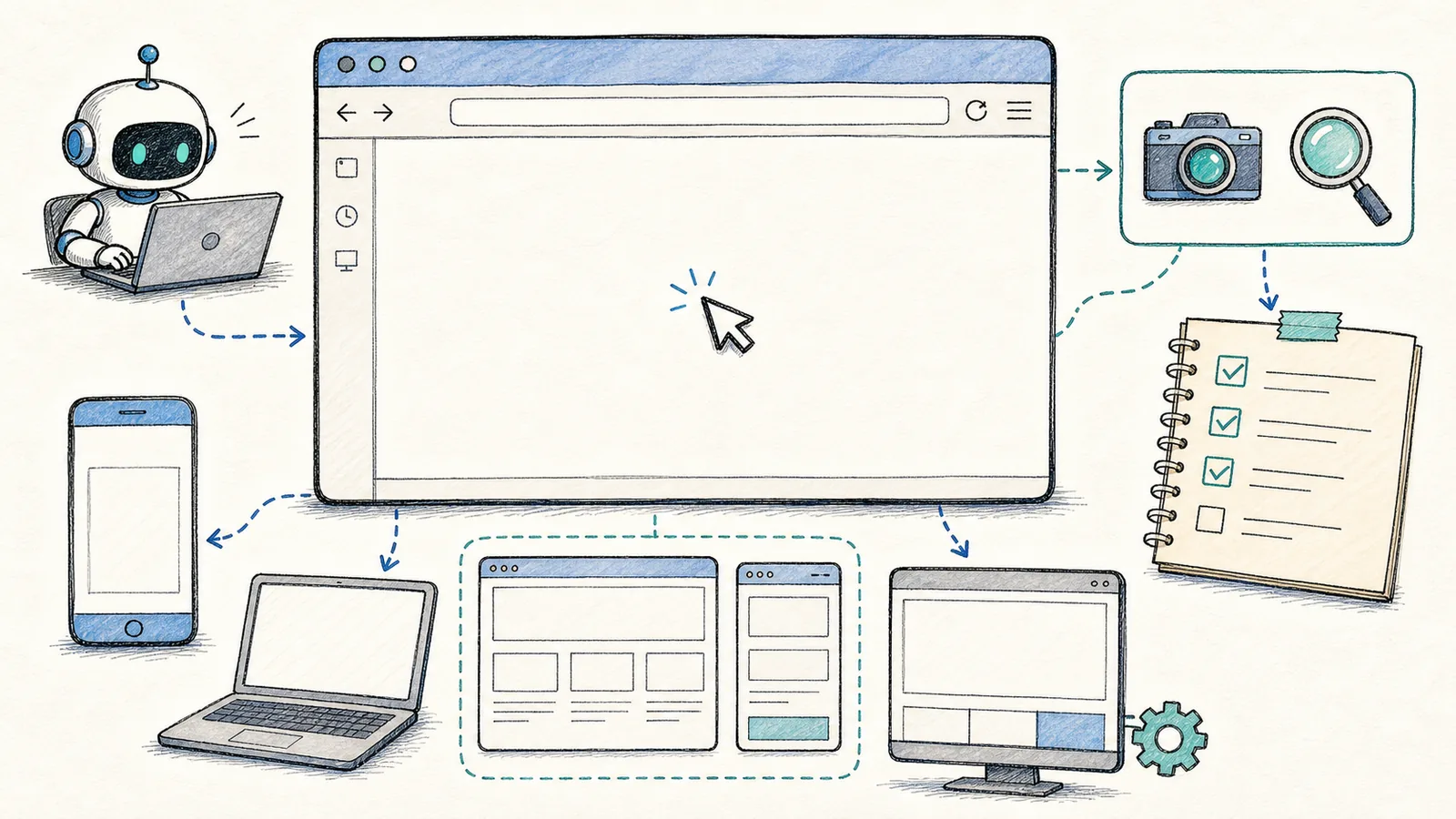
Many frontend issues cannot be diagnosed by code alone. Whether a button overflows its container, whether text is legible in dark mode, whether horizontal scrolling appears on mobile, or whether modals obscure critical content—all of these require inspecting the actual rendered page.
The in-app browser and Browser Use features built into the Codex App are designed precisely for such scenarios.
When I fix frontend issues, I instruct Codex to open and interact with the live page—not just examine component source code. Many problems only become apparent in the browser: overlapping buttons, unintended horizontal scrolling on mobile, incorrect image aspect ratios, or clipped text.
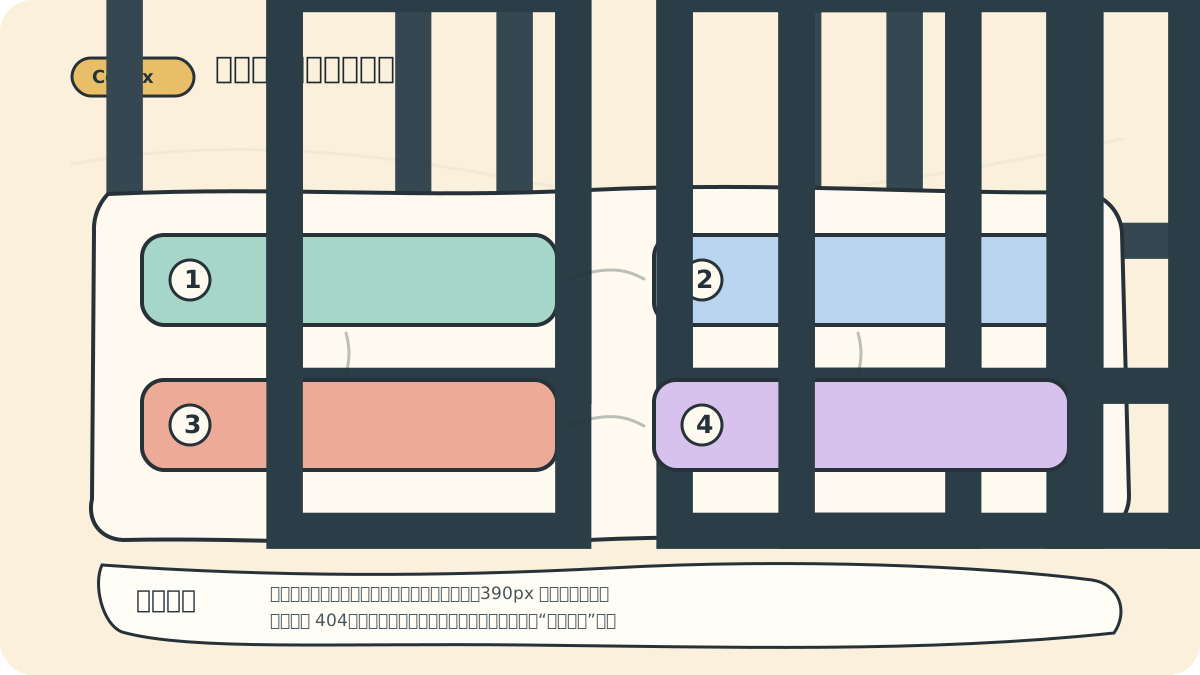
You can embed a standardized verification step: view the page once on desktop, then again at 390px width (simulating a typical mobile viewport), and check for 404 errors, broken images, and unintended horizontal scrolling. This approach aligns much more closely with real user experience than simply declaring “build passes.”
When to Use the In-App Browser
According to the official in-app browser documentation, it’s best suited for local development servers, static file previews, and publicly accessible pages that don’t require authentication. You and Codex can share the same page view—leaving annotations directly on elements—and Codex will use those comments as contextual guidance when modifying code.
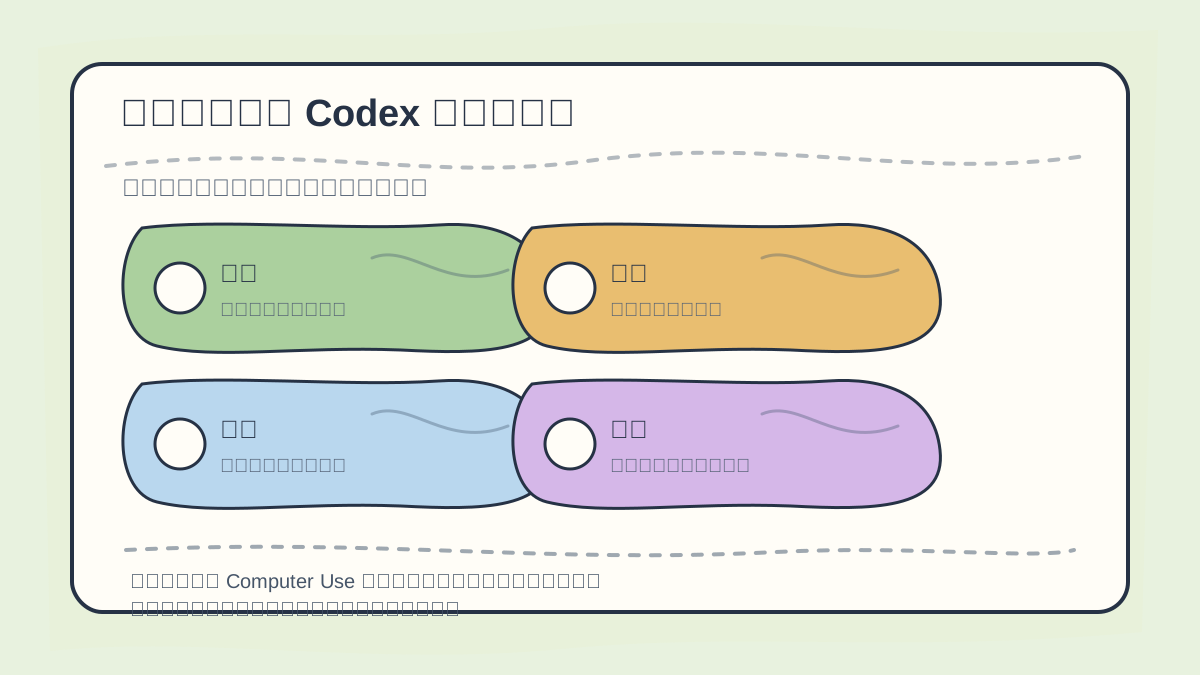
When debugging frontend issues using the browser or Computer Use, follow this sequence:
- Open the live page first;
- Then verify visible state, interaction flows, resource loading behavior, and console error messages.
Well-suited for:
- Local
localhostpages (e.g.,http://localhost:3000) - Publicly accessible pages requiring no login
- Static HTML previews
- Cross-device layout validation (desktop & mobile)
- Annotating specific UI elements for feedback
Not suitable for:
- Pages requiring authenticated sessions
- Pages dependent on browser extensions
- Pages relying on your personal Chrome profile settings
- Admin dashboards or internal tools requiring real cookies
For such cases, consider using your regular browser, a Chrome extension, or manual reproduction instead.
How to Write Effective Browser Use Tasks
A well-scoped task clearly specifies the target page, its expected state, and precise boundaries:
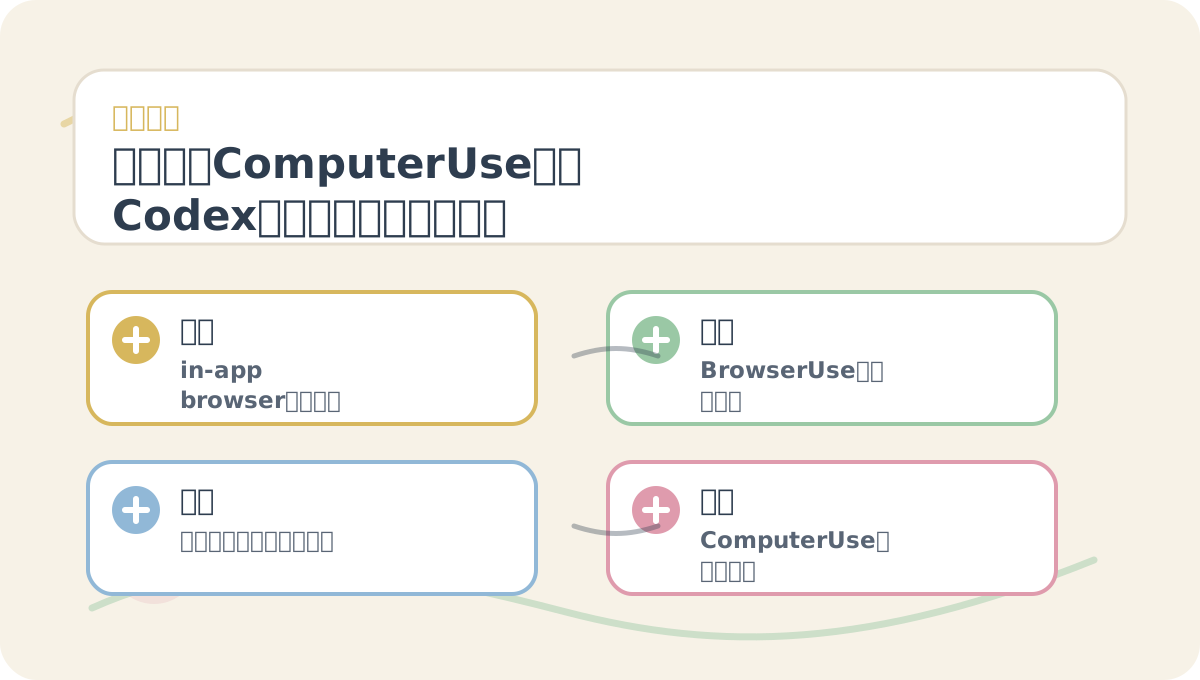
The guide “Browser & Computer Use: Let Codex See the Real Page Before Fixing Frontend” is designed to be read alongside its diagrams. First confirm the problem and evaluation criteria; then proceed to conceptual explanations and step-by-step practice—this helps connect ideas into a coherent mental model.
Use the browser to open http://localhost:3000/settings.
Reproduce the mobile layout overflow.
Fix only the overflowing controls.
Do not change API logic or data fetching.
After the fix, verify the page again in the browser.
Chinese version (also valid):
Please use the browser to open http://localhost:3000.
Check whether text overflows at 375px viewport width on the homepage.
Modify only visual layout—do not alter APIs or data structures.
After changes, reopen and verify the page.
The key phrase is “modify only visual layout.” Frontend bugs easily snowball into broad, unrelated refactoring if scope isn’t tightly controlled.
Page Annotations Are More Precise Than Verbal Descriptions
As noted in the official documentation, you can enter Annotation Mode inside the in-app browser to leave targeted comments on specific elements or regions—for example: “button overflows container,” “tooltip obscures navigation,” or “card height jumps on hover.” Codex treats these annotations as direct context for code changes.
This is far more accurate than saying something vague like “that thing on the right doesn’t look quite right.” Marking it directly on the page dramatically increases the chance Codex implements the correct fix.
When to Use Computer Use
Computer Use grants broader desktop-level control—enabling interaction with native applications or OS-level UI elements. It carries higher permission sensitivity than the in-app browser. As the official documentation warns, on Windows, the target application must remain visible on the active desktop.
We recommend learning Computer Use after mastering the in-app browser. Start with browser-based tasks, then graduate to Computer Use only when you need to automate actions that truly require desktop application interaction.
Frontend Verification Checklist
After Codex completes a frontend fix, always validate at least the following:
When revisiting “Browser & Computer Use: Let Codex See the Real Page Before Fixing Frontend,” avoid jumping straight into large-scale projects. Instead, begin with one simple, representative example to confirm the core workflow is clear.
If “Browser & Computer Use: Let Codex See the Real Page Before Fixing Frontend” hasn’t yet fully clicked, walk through these four concrete actions again:
- ✅ Renders correctly on both desktop and mobile viewports
- ✅ No text overflows or truncation
- ✅ No interactive elements (e.g., buttons) obscured or overlapping
- ✅ Content remains readable in both light and dark modes
- ✅ All images and assets load successfully
- ✅ Build completes without errors
Code diffs alone aren’t enough. True frontend issue resolution is only complete when you see the working page.
References:
Apply This Lesson
Turn this article into AI software, model, API, and security decisions.
English Article FAQ
Use this article as evidence before choosing AI tools
How should I use this AI Tutorials article?
Use it as the implementation or learning layer, then connect the idea to AI software buyer guides, tool comparisons, benchmarks, API choices, and security checks before making a production decision.
Is this English article different from the Chinese original?
The English edition is localized for global AI readers while preserving the original diagrams, screenshots, prompts, code examples, and source context from the Chinese article.
What should I read after 7 Browser and Computer Use: Enable Codex to See Real Pages for Frontend Debugging?
Continue with AI Software Buyer Guides, AI Tools Workbench, Best AI Coding Agents, AI Model Benchmarks, OpenAI vs Anthropic API, or LLM Security Tools depending on the decision you need to make.
Can this article alone choose an AI product or model?
No. Treat the article as evidence and context, then validate fit with pricing, privacy requirements, integration effort, benchmark results, workflow tests, and fallback planning.
Continue