English translation
15. Connect DeepSeek to Remote Compute & Manage Your Personal Knowledge Base — A Game-Changer!
AI Article Decision Snapshot
Turn the lesson into workflow, model, budget, and security checks before choosing tools.
Use this quick snapshot before leaving the article. It keeps the next search tied to practical AI software, model/API, cost, privacy, and implementation questions.
Workflow fit
Identify the real job behind the article: coding, research, document review, support, analytics, content, or internal automation.
Model or tool decision
Decide whether the next step is a software shortlist, an AI tool comparison, an API platform choice, or a model benchmark.
Budget and usage signal
Estimate seats, API calls, prompt volume, retries, review time, and fallback work before assuming the workflow is cheap.
Security and privacy review
Check whether source code, customer data, private documents, prompts, logs, or embeddings will enter the AI workflow.
Remote compute power is ideal for tasks too demanding for your local machine—but it’s not a mindless upgrade. You must verify whether your data will be uploaded to the cloud, whether data transmission is encrypted, who has access to the service, and whether costs remain predictable and controllable. Especially when managing a personal knowledge base, performance gains must never come at the expense of privacy boundaries.
Before connecting to remote compute, consider drafting a clear “boundary checklist”:
- Which files may be uploaded?
- Which files must remain processed locally?
- Where are credentials (e.g., account passwords) stored securely?
- How do you properly shut down the service when not in use?
Documenting these decisions upfront significantly increases peace of mind during ongoing usage.
Recently, several readers reached out with a common issue: even when running the smallest DeepSeek-R1 model (1.5B) on their local machines, queries hang indefinitely—no response arrives, as if the system freezes entirely.
This isn’t an isolated case—it appears widespread. So today’s article explores a practical solution—especially valuable for users whose personal computers lack dedicated GPUs (e.g., relying only on integrated Intel graphics), making local large-model inference impractical or impossible.
Beyond solving this bottleneck, this article also walks you through building a personal knowledge base powered by large language models.
1 The Solution
Since local compute falls short, we turn to remote compute: offloading all inference workloads away from your local device—even users with high-end hardware may prefer preserving local resources. In short, the solution is: invoke remote LLM compute power.
Prior to writing this article, I evaluated multiple platforms—and found Tencent Cloud’s High-Performance Application Service (HAI) to be the most beginner-friendly option, for two key reasons:
- Zero-code integration with your local PC—critical for non-programmers;
- Full support for DeepSeek-R1, including all parameter scales: 1.5B, 7B, 8B, and even the full-fat 671B version.
Once compute is resolved, the second half of this article explains how to integrate Tencent Cloud HAI with my open-source personal knowledge base software, enabling efficient management of your private documents.
2 Connecting Tencent Cloud HAI Compute to Your Local PC
Tencent Cloud HAI currently offers a ¥1 CPU-based trial—essentially free! Pre-installed distilled DeepSeek-R1 models include five sizes: 1.5B, 7B, 8B, 14B, and 32B. Below, we demonstrate the CPU-tier setup step-by-step.
Each step is described in detail—you’ll need just three simple actions to start using DeepSeek-R1 immediately.
Step 1: Go to the Tencent Cloud console: https://console.cloud.tencent.com
Step 2: On the homepage, locate High-Performance Application Service (HAI):

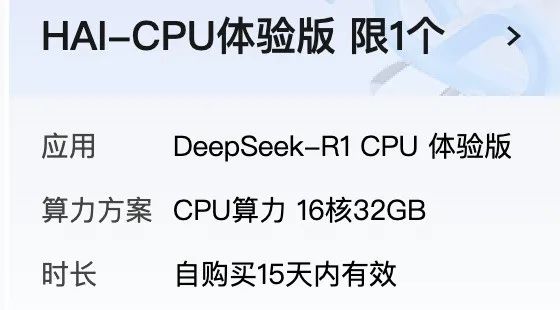
Select the ¥1 HAI-CPU Trial Edition, which provides 16 vCPUs and 32 GB RAM:
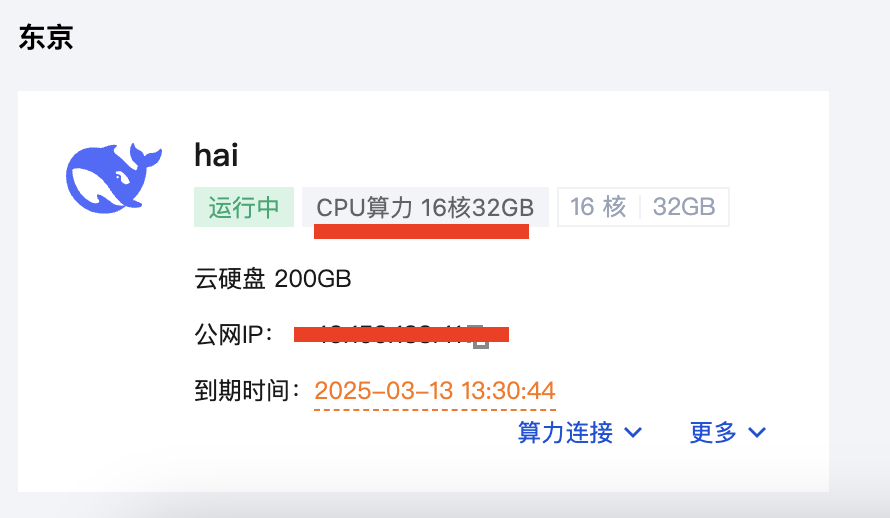
Step 3: Wait ~1 minute for provisioning. Then navigate to: https://console.cloud.tencent.com/hai/instance?rid=1
You’ll see your newly allocated HAI instance. Copy its public IP address—you’ll need it later:
By default, HAI already integrates with five ready-to-use interfaces:
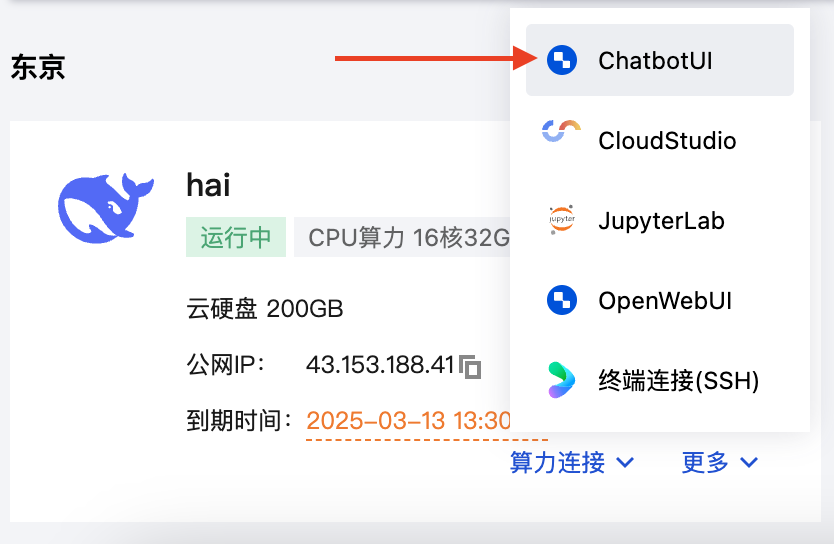
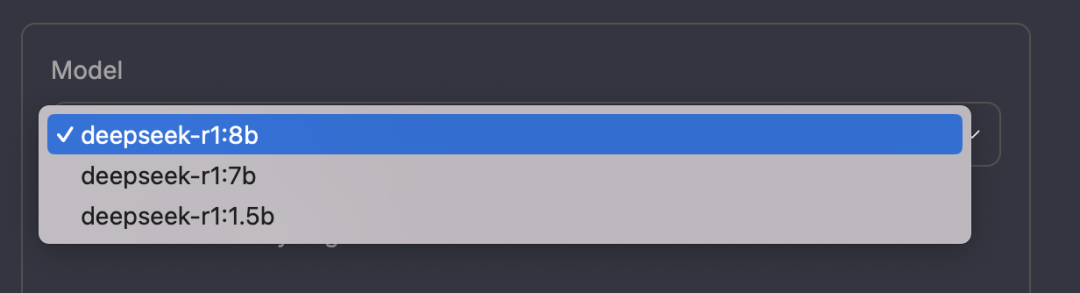
For example, click the first option—ChatbotUI—to instantly interact with DeepSeek-R1 models (e.g., deepseek-r1:8b, deepseek-r1:7b, deepseek-r1:1.5b):
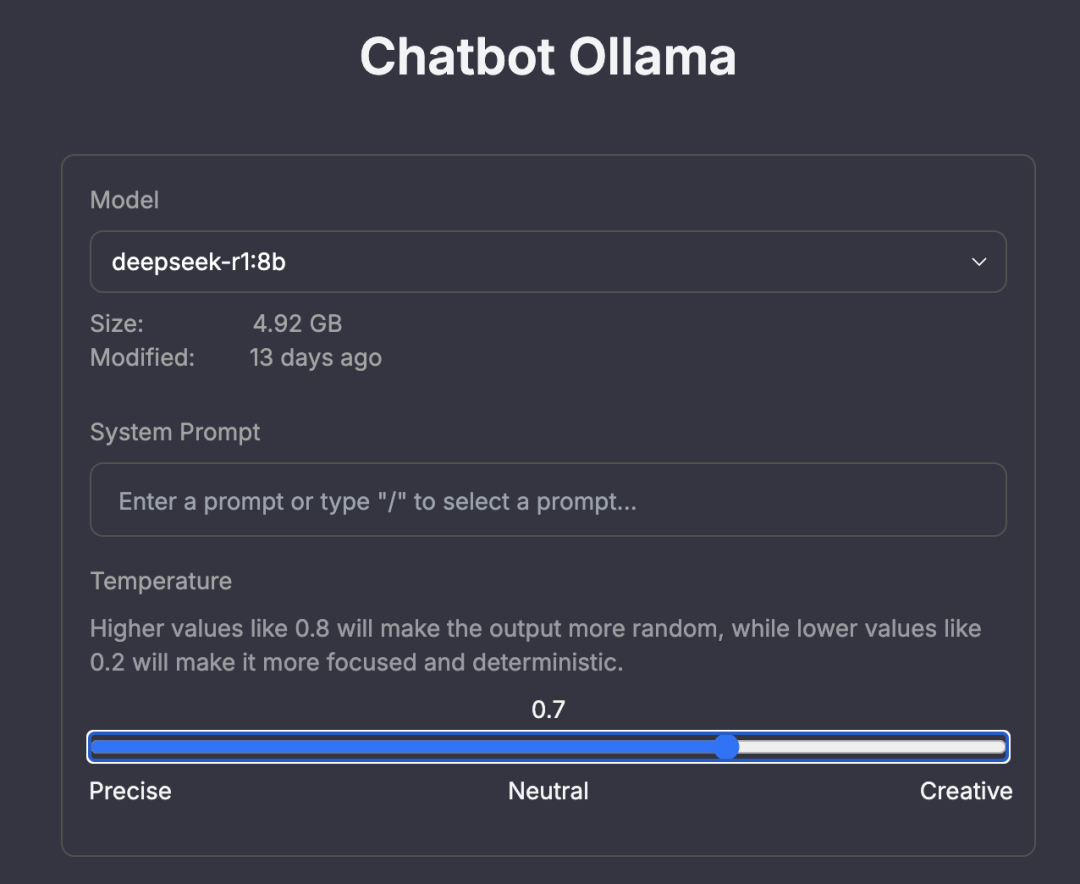
Try a conversation! Set temperature to 0.7 to balance factual consistency and creative flexibility:
Other models are equally accessible—zero code required. We won’t cover them individually here. Next, let’s focus on integrating HAI compute with your local personal knowledge base.
3 Managing Your Personal Knowledge Base via HAI
HAI delivers DeepSeek-R1 compute power over the internet. Using its public IP + port, you can seamlessly connect it to knowledge-base software running locally on your PC.
My open-source tool DeepSeekMine (v0.4) supports exactly this integration—fully zero-code, intuitive, and purpose-built for knowledge management. As shown below, enter a keyword like “Xiao Ming”, and the system retrieves relevant context from your knowledge base, then injects it automatically into the DeepSeek-R1 model (powered by HAI):
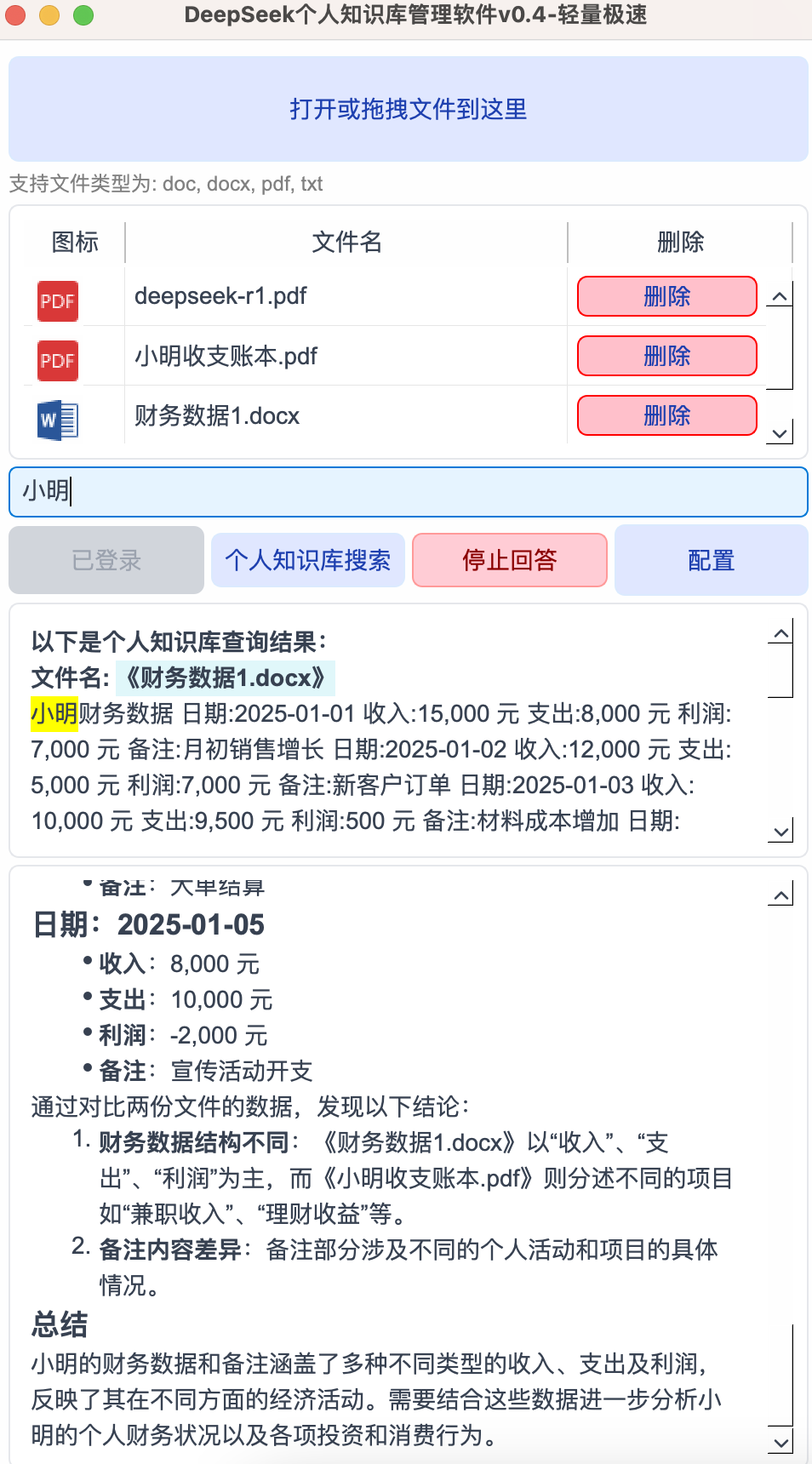
Some readers may be encountering DeepSeekMine for the first time. To get started: → Visit my WeChat official account and reply “Knowledge Base”. → The full source code is open-sourced—completely free.

Now, let’s configure HAI compute inside DeepSeekMine: Click the “Settings” button in the app (see screenshot above), then fill in the dialog box as follows:
- Paste the public IP (copied earlier) into the Ollama Server IP field.
- Keep other fields identical to the example below:
- Port:
6399 - Model name: e.g.,
deepseek-r1:7b(ordeepseek-r1:8b, depending on your preference)
- Port:
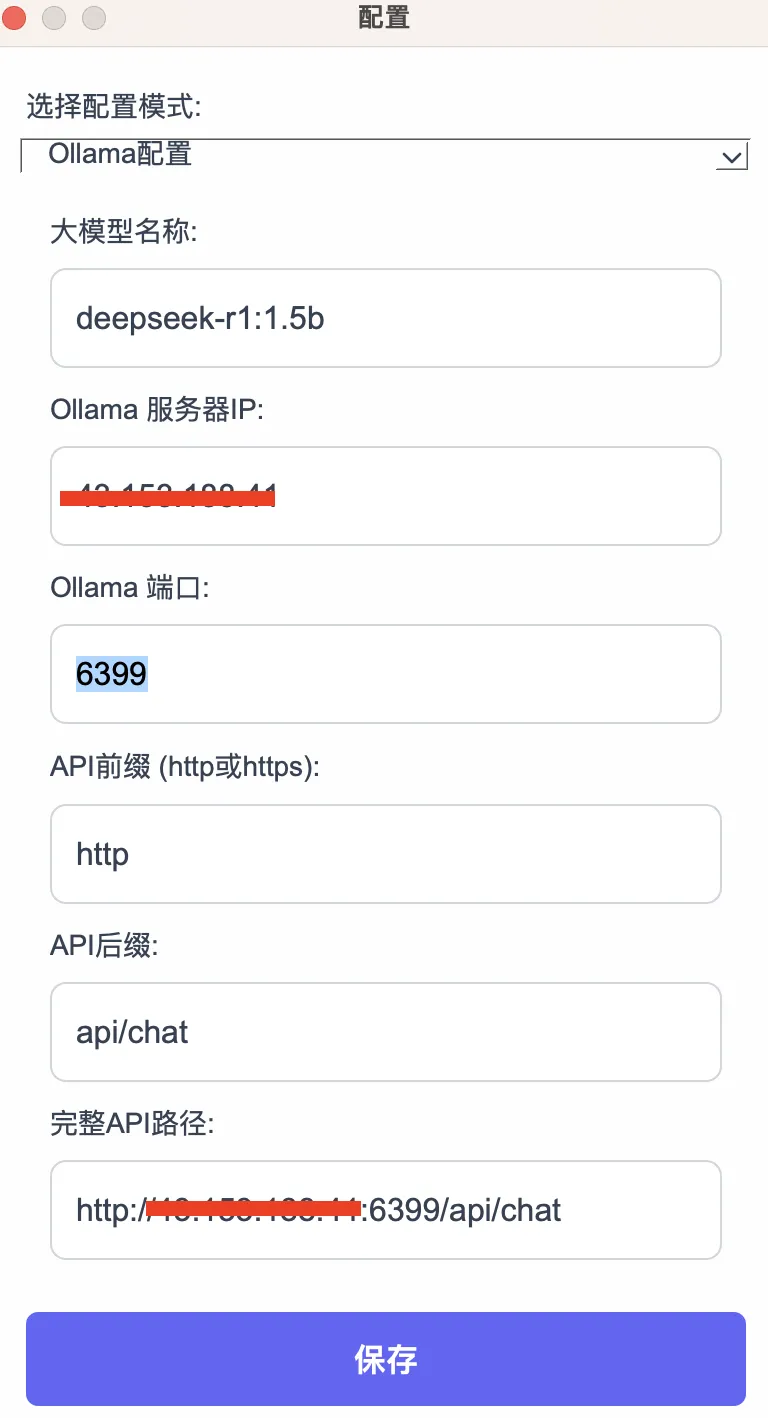
Click Save, then upload your knowledge base files. You’re now ready to chat with DeepSeek—intelligently analyzing your own documents.
Summary
This article addresses a widespread pain point: sluggish or failed DeepSeek inference on consumer-grade PCs—rendering the model practically unusable.
Our solution leverages remote DeepSeek compute via Tencent Cloud HAI, offering two standout advantages:
- Beginner-friendly: Zero coding required; just three simple steps to run DeepSeek instantly.
- Full model support: All DeepSeek-R1 variants—including the full 671B version—run smoothly on HAI.
After connecting remote compute, integrating with DeepSeekMine takes only one configuration step, empowering effortless personal knowledge base management.
Interested readers are encouraged to try this workflow firsthand!
Apply This Lesson
Turn this article into AI software, model, API, and security decisions.
English Article FAQ
Use this article as evidence before choosing AI tools
How should I use this AI Tutorials article?
Use it as the implementation or learning layer, then connect the idea to AI software buyer guides, tool comparisons, benchmarks, API choices, and security checks before making a production decision.
Is this English article different from the Chinese original?
The English edition is localized for global AI readers while preserving the original diagrams, screenshots, prompts, code examples, and source context from the Chinese article.
What should I read after 15. Connect DeepSeek to Remote Compute & Manage Your Personal Knowledge Base — A Game-Changer!?
Continue with AI Software Buyer Guides, AI Tools Workbench, Best AI Coding Agents, AI Model Benchmarks, OpenAI vs Anthropic API, or LLM Security Tools depending on the decision you need to make.
Can this article alone choose an AI product or model?
No. Treat the article as evidence and context, then validate fit with pricing, privacy requirements, integration effort, benchmark results, workflow tests, and fallback planning.
Continue