English translation
Install Hermes Agent and Prepare the Environment
AI Article Decision Snapshot
Turn the lesson into workflow, model, budget, and security checks before choosing tools.
Use this quick snapshot before leaving the article. It keeps the next search tied to practical AI software, model/API, cost, privacy, and implementation questions.
Workflow fit
Identify the real job behind the article: coding, research, document review, support, analytics, content, or internal automation.
Model or tool decision
Decide whether the next step is a software shortlist, an AI tool comparison, an API platform choice, or a model benchmark.
Budget and usage signal
Estimate seats, API calls, prompt volume, retries, review time, and fallback work before assuming the workflow is cheap.
Security and privacy review
Check whether source code, customer data, private documents, prompts, logs, or embeddings will enter the AI workflow.
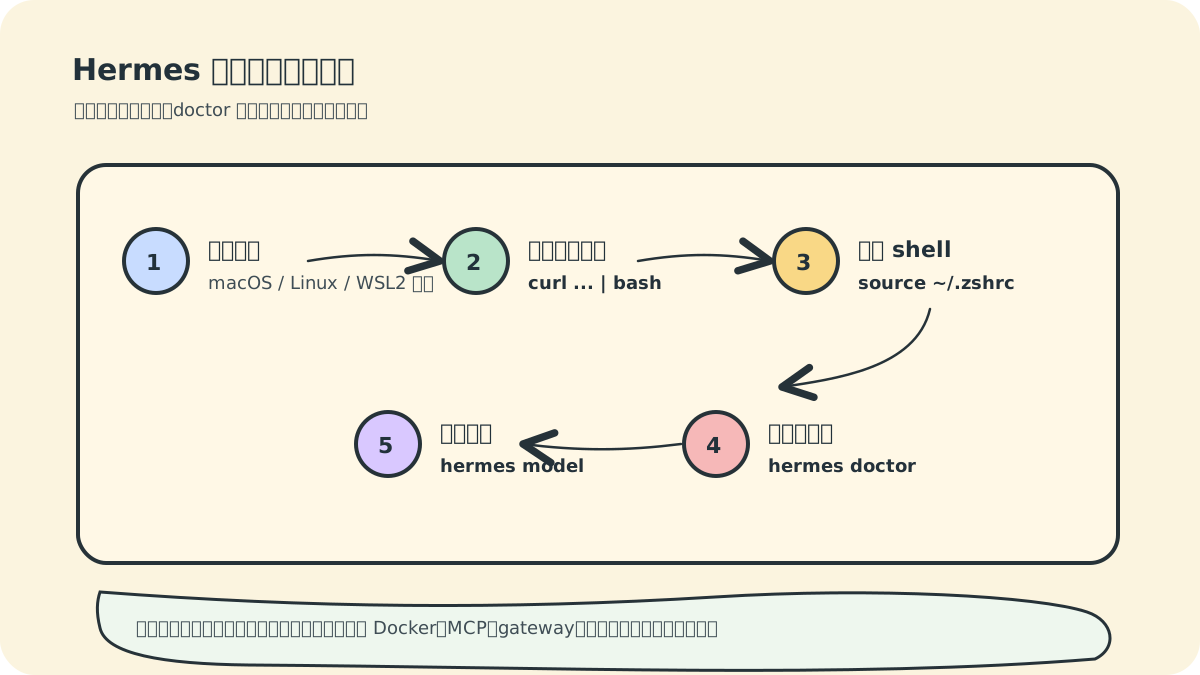
The first step in installing Hermes Agent is preparing the runtime environment. The official one-click installation script automatically sets up dependencies including Python, Node.js, uv, ripgrep, and ffmpeg. For beginners, the recommended platforms are Linux, macOS, or Windows Subsystem for Linux 2 (WSL2).
Installation tutorials often default to “just copy and paste the commands”—but we strongly advise against relying solely on command execution. What truly determines whether you’ll use Hermes smoothly later lies in three post-installation steps: reloading your shell, running hermes doctor, and configuring a model to enable interactive conversations. The diagram above consolidates these critical checkpoints into a sequential workflow—following it helps avoid many common environment pitfalls.
If this is your first time installing an agent tool, do not configure Docker, MCP, gateway, and cron simultaneously. First ensure Hermes reliably responds in a single terminal session; only then gradually expand outward.
1. Recommendations Before Installation
Before running the installer, confirm the following three prerequisites:
When installing the Hermes Agent, verify your runtime environment, dependency versions, configuration files, and a minimal working task. Once this small closed loop succeeds, integrate more complex toolchains incrementally.
- Your computer can access GitHub normally.
- Git is already installed—or you’re willing to let the Hermes installer handle Git-related dependencies.
- You have an account with at least one model provider—for example, OpenAI, OpenRouter, DeepSeek, Kimi, Qwen, or Hugging Face.
If you’re on Windows, WSL2 is strongly preferred. Native PowerShell installation is supported but officially marked as early beta—you’re more likely to encounter edge-case issues.
2. Installation on macOS, Linux, and WSL2
Open a terminal and run:
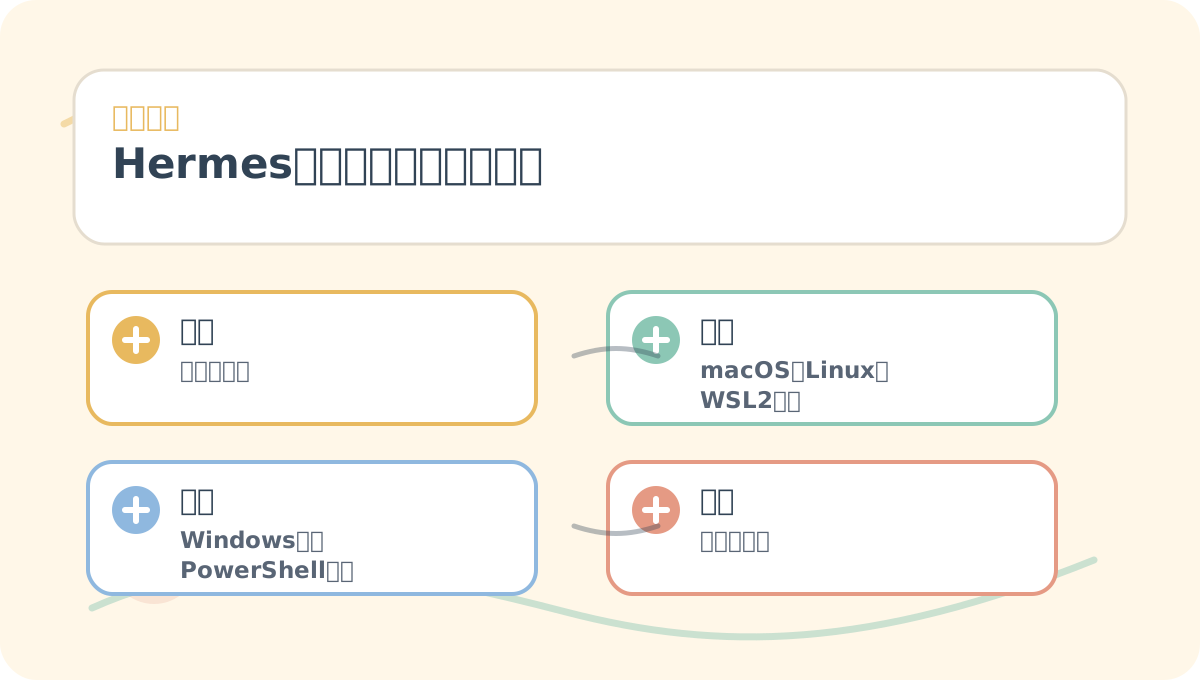
By the end of “2. Hermes Agent Installation and Environment Setup”, treat the flowchart in the image as your verification checklist: Is the problem clearly defined? Are actions concrete and actionable? Can the evaluation criteria be reused?
curl -fsSL https://raw.githubusercontent.com/NousResearch/hermes-agent/main/scripts/install.sh | bash
After installation completes, reload your shell:
source ~/.bashrc
If you use zsh, instead run:
source ~/.zshrc
Then type:
hermes
If you see Hermes’ welcome screen, the core application has been successfully installed.
3. Native PowerShell Installation on Windows
If you prefer not to use WSL2, you may install via PowerShell:
irm https://raw.githubusercontent.com/NousResearch/hermes-agent/main/scripts/install.ps1 | iex
Per official documentation, native Windows installation handles uv, Python 3.11, Node.js, ripgrep, ffmpeg, and a portable Git Bash. After installation, open a new PowerShell window to ensure PATH updates take effect.
⚠️ Note: Native Windows support remains in early beta. Core capabilities—including chat, CLI, gateway, cron, browser tools, and MCP server—work reliably. However, dashboard-style chat terminals built on POSIX PTY (e.g., certain interactive TUIs) perform better under WSL2.
4. Post-Installation Verification
Start by running:
hermes doctor
This command scans your current environment, identifies missing components, and suggests fixes.
Next, run:
hermes setup
hermes setup launches a full guided configuration wizard—ideal for first-time users. It walks you through setting up models, tools, platforms, and other foundational options.
To configure only a model provider (and skip other setup steps), run:
hermes model
5. Hermes File Directory Structure
Hermes stores its primary configuration under:
~/.hermes/
Key files and directories include:
config.yaml: Non-sensitive configurations—models, terminal backends, tools, etc..env: Sensitive credentials—API keys, tokens, passwords.SOUL.md: Defines the main agent’s personality and default communication style.memories/: Persistent memory storage.skills/: Custom skill definitions.cron/: Scheduled tasks.sessions/: Conversation history and session data.logs/: Runtime logs.
💡 Beginners: Avoid manually editing .env. Instead, safely write credentials using CLI commands:
hermes config set OPENROUTER_API_KEY sk-or-...
Hermes automatically writes secret-type values (e.g., API keys) to .env, while storing general settings in config.yaml.
6. Common Installation Issues
6.1 hermes: command not found
This usually means your shell hasn’t reloaded the updated PATH. Run:
source ~/.bashrc
Or simply restart your terminal.
6.2 API key not set
Indicates no model provider has been configured yet. Run:
hermes model
Follow the prompts to select a provider and enter authentication details.
6.3 Command anomalies on Windows
Prefer reinstalling via WSL2. Agent systems frequently invoke shell utilities, file operations, and external tools—WSL2 closely mirrors the official primary test environment and delivers greater stability.
6.4 Distrust of the one-click installer
You may first inspect the official installation script directly in the repository before executing it. Alternatively, clone the repo and use the developer installation method—manually creating and managing a virtual environment.
7. Updating Hermes
To update Hermes later, run:
hermes update
If configuration gaps appear after updating, run:
hermes config check
hermes config migrate
After completing “2. Hermes Agent Installation and Environment Setup”, try applying it to your own scenario. Focus especially on whether inputs, processing logic, and outputs align coherently.
To apply “2. Hermes Agent Installation and Environment Setup” to your own task, begin by narrowing scope—validate just one critical decision point first.
8. Summary of This Section
You’ve now completed Hermes installation and basic environmental verification. The most essential commands to remember are:
hermes doctor
hermes setup
hermes model
In the next section, we’ll focus on model configuration—once that’s complete, Hermes will be ready to truly begin working.
Apply This Lesson
Turn this article into AI software, model, API, and security decisions.
English Article FAQ
Use this article as evidence before choosing AI tools
How should I use this AI Tutorials article?
Use it as the implementation or learning layer, then connect the idea to AI software buyer guides, tool comparisons, benchmarks, API choices, and security checks before making a production decision.
Is this English article different from the Chinese original?
The English edition is localized for global AI readers while preserving the original diagrams, screenshots, prompts, code examples, and source context from the Chinese article.
What should I read after Install Hermes Agent and Prepare the Environment?
Continue with AI Software Buyer Guides, AI Tools Workbench, Best AI Coding Agents, AI Model Benchmarks, OpenAI vs Anthropic API, or LLM Security Tools depending on the decision you need to make.
Can this article alone choose an AI product or model?
No. Treat the article as evidence and context, then validate fit with pricing, privacy requirements, integration effort, benchmark results, workflow tests, and fallback planning.
Continue