English translation
Hermes Agent Model Configuration and First Conversation
AI Article Decision Snapshot
Turn the lesson into workflow, model, budget, and security checks before choosing tools.
Use this quick snapshot before leaving the article. It keeps the next search tied to practical AI software, model/API, cost, privacy, and implementation questions.
Workflow fit
Identify the real job behind the article: coding, research, document review, support, analytics, content, or internal automation.
Model or tool decision
Decide whether the next step is a software shortlist, an AI tool comparison, an API platform choice, or a model benchmark.
Budget and usage signal
Estimate seats, API calls, prompt volume, retries, review time, and fallback work before assuming the workflow is cheap.
Security and privacy review
Check whether source code, customer data, private documents, prompts, logs, or embeddings will enter the AI workflow.
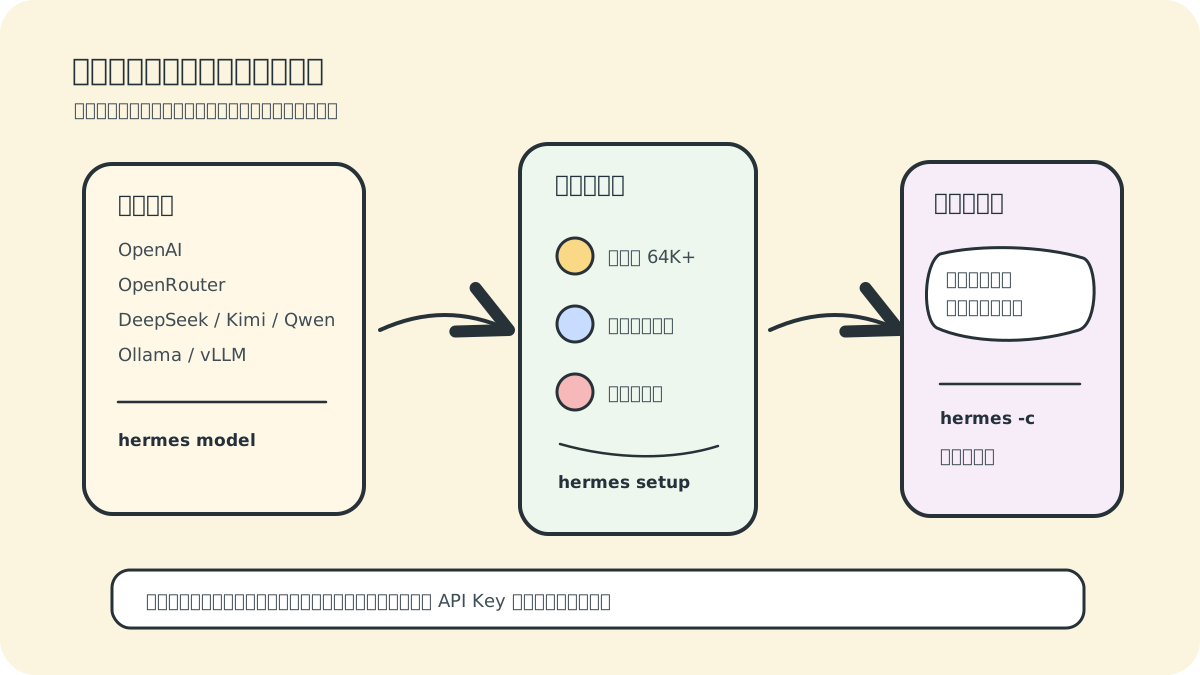
Installing Hermes is only the first step. What truly defines your experience is which model you configure it with. Agent tasks—unlike ordinary chat—are far more demanding in terms of context length, tool-calling capability, and stability. So don’t jump straight into complex workflows using an undersized or ill-suited model.
When I test agent tools, I never start with large, open-ended questions. A more robust approach is to first verify three things:
- Is the model’s context window sufficient?
- Are tool calls stable and reliable?
- Can a simple read-only task complete successfully on the first try?
The diagram above aligns the model entry point, selection criteria, and first conversation along a single workflow—emphasizing that you must validate the end-to-end loop before tackling sophisticated workflows.
Many complaints like “the agent doesn’t work well” are rarely due to flaws in the agent framework itself. More often, they stem from insufficient context length, misconfigured API keys, or overly ambitious first tasks. Eliminate these foundational issues first—only then can you accurately assess Hermes’ intrinsic capabilities.

1. Run the Model Configuration Wizard
In your terminal, execute:
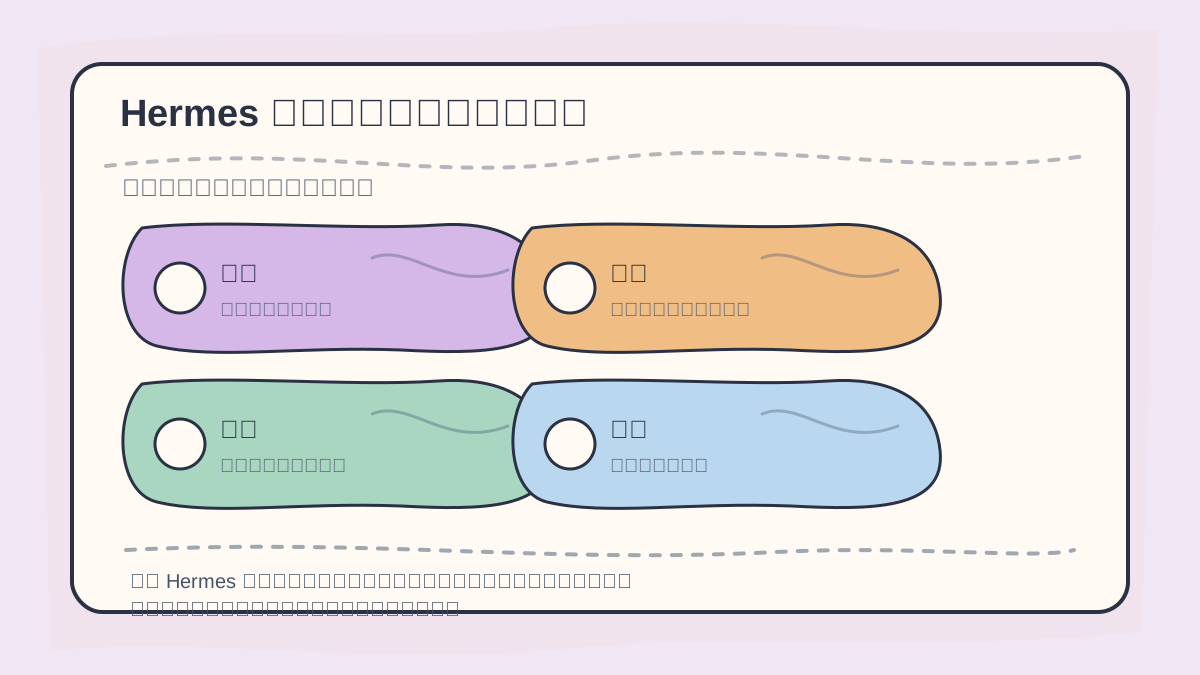
After configuring Hermes’ model, conduct a small test conversation to verify model connectivity, prompt context handling, output formatting, and log recording. Only after confirming reliability should you connect Hermes to real-world tasks.
hermes model
This command launches an interactive configuration flow where you select your model provider, authentication method, and default model.
You may also run the full setup wizard:
hermes setup
However, if installation is already complete and you simply want to get a working model up and running quickly, hermes model is the most direct option.
2. How to Choose a Model Provider
Hermes supports numerous providers. Beginners can choose based on use case:
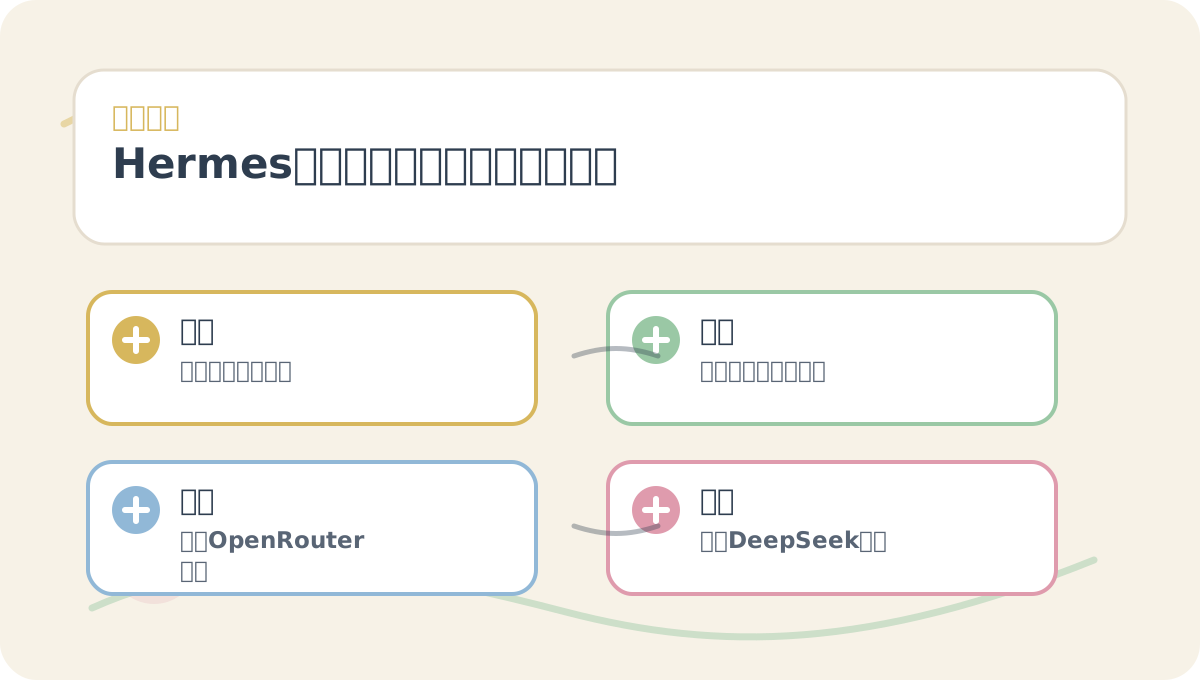
Before reading the main text of “Hermes Agent: Model Configuration and First Conversation,” first map the questions, keywords, actions, and acceptance criteria shown in the diagram. This makes the subsequent reading significantly more efficient. After finishing, try explaining the entire process again—using your own project as context.
| Use Case | Recommended Provider Type |
|---|---|
| Want fastest working setup | OpenAI, Anthropic, Nous Portal, OpenRouter |
| Prefer domestic Chinese models | DeepSeek, Kimi, Qwen, Zhipu GLM |
| Need unified routing across multiple models | OpenRouter, Hugging Face Inference Endpoints |
| Require private or local deployment | Ollama, vLLM, SGLang (or any OpenAI-compatible endpoint) |
| Prioritize coding tasks | Choose models strong in code generation, with long context windows and reliable tool-calling |
The official Hermes quickstart guide explicitly recommends: models must support at least 64K tokens of context. Why? Because agents don’t just generate one-off replies—they must retain plans, tool outputs, file snippets, error logs, and full conversational history throughout execution.
3. Example: Configuring OpenRouter
To route through OpenRouter and access multiple models, select OpenRouter during the interactive wizard and enter your API key.
Alternatively, set the key directly via config command:
hermes config set OPENROUTER_API_KEY sk-or-...
Then run:
hermes model
and select your preferred model from the list.
4. Example: Configuring DeepSeek
To use DeepSeek’s API directly, select the DeepSeek provider during hermes model, then follow the prompts to enter your API key.
Or pre-set the environment variable:
hermes config set DEEPSEEK_API_KEY sk-...
Then run:
hermes model
Note: Model names, context lengths, and pricing models vary across providers—and may change over time. Always refer to the wizard interface and official provider dashboards for up-to-date details.
5. Example: Configuring a Local Model
If you’re running Ollama, vLLM, or SGLang locally, use the “Custom OpenAI-Compatible Endpoint” option.
For example, with Ollama: First ensure the local service is running:
ollama serve
Then run:
hermes model
Select “Custom Endpoint” and enter something like:
http://localhost:11434/v1
Finally, specify the exact name of the model you’ve pulled locally (e.g., llama3:70b, qwen2:72b, etc.).
⚠️ Pay special attention to context length when using local models. If the context window is too short, Hermes may refuse to start—or rapidly lose context during multi-step tasks.
6. Launching Hermes for the First Time
Once model configuration is complete, launch Hermes with:
hermes
Or use the TUI (Terminal User Interface):
hermes --tui
For your first interaction, avoid large or ambiguous requests. Instead, begin with small, verifiable tasks such as:
Summarize the purpose of this project in the current directory, and suggest where the main entry point file might be.
Or:
List the five most important files in this directory for me to read first—and explain why each matters.
If Hermes correctly reads the filesystem, returns accurate file information, and shows no authentication errors, your foundational end-to-end loop is confirmed operational.
7. Validating Session Resume
After ending a session, test resumption:
hermes --continue
Or use the shorthand:
hermes -c
If Hermes restores the previous conversation state, session persistence is working correctly—a critical requirement for long-running agent tasks.
8. Common Slash Commands
Inside Hermes, type / to see available commands. Frequently used ones include:
| Command | Purpose |
|---|---|
/help |
Show help menu |
/tools |
View or switch enabled tools |
/model |
Switch active model |
/new |
Start a fresh session |
/reset |
Reset current session history |
/retry |
Retry the last request |
/undo |
Undo the last action |
/usage |
View current context token usage |
If a task veers off course, simply type a new message to interrupt and redirect. In CLI mode, you can also press Ctrl+C.
9. How to Confirm Successful Configuration
A successful configuration typically exhibits four clear signs:
- On startup, Hermes displays the currently active model and provider.
- It replies normally—no repeated warnings about missing API keys.
- It executes basic tools reliably (e.g., listing directories or reading files).
- Multi-turn conversations preserve context coherently.
If configuration fails, troubleshoot in this order:
hermes doctor
hermes model
hermes setup
hermes sessions list
hermes --continue
If you haven’t fully internalized “Hermes Agent: Model Configuration and First Conversation,” revisit this card and walk through its four actionable steps.
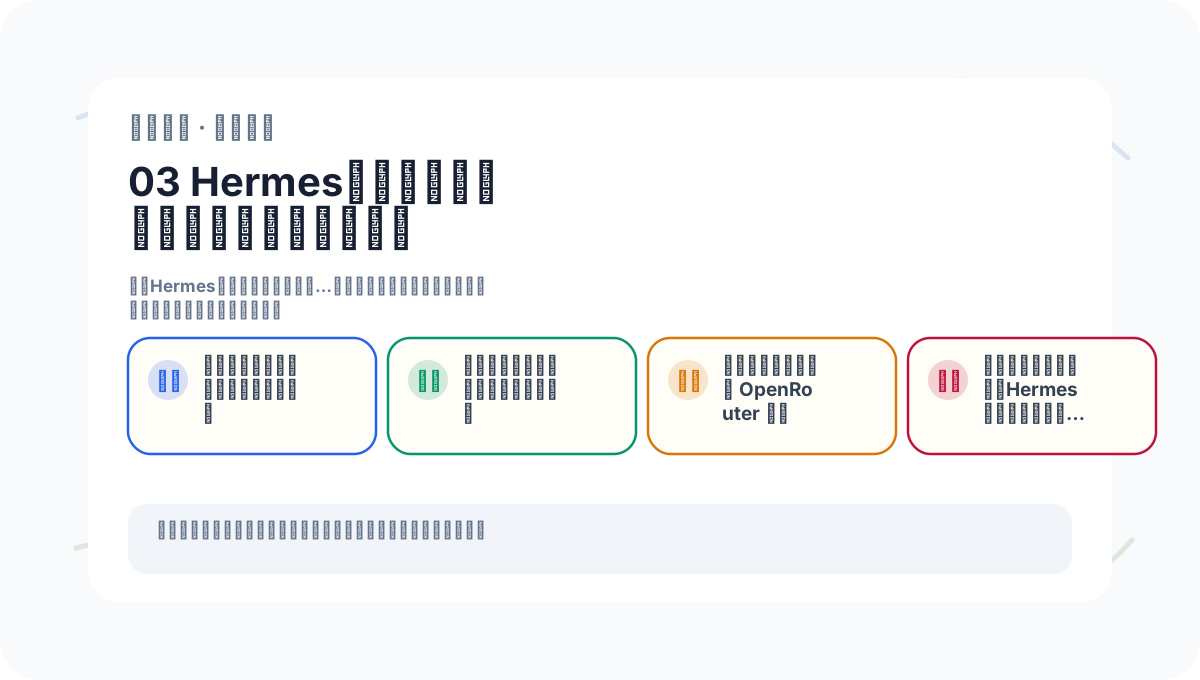
When reviewing “Hermes Agent: Model Configuration and First Conversation,” don’t aim to build a full-scale project right away. Instead, use a single, minimal working example to confirm whether the core workflow is clear and functional.
10. Summary of This Section
Model configuration is the pivotal first milestone in mastering Hermes. Beginners should prioritize getting one model working reliably before layering on tools, Docker, MCP integrations, messaging platforms, or automation pipelines. Once your first authentic, end-to-end conversation succeeds, everything that follows becomes dramatically easier.
Apply This Lesson
Turn this article into AI software, model, API, and security decisions.
English Article FAQ
Use this article as evidence before choosing AI tools
How should I use this AI Tutorials article?
Use it as the implementation or learning layer, then connect the idea to AI software buyer guides, tool comparisons, benchmarks, API choices, and security checks before making a production decision.
Is this English article different from the Chinese original?
The English edition is localized for global AI readers while preserving the original diagrams, screenshots, prompts, code examples, and source context from the Chinese article.
What should I read after Hermes Agent Model Configuration and First Conversation?
Continue with AI Software Buyer Guides, AI Tools Workbench, Best AI Coding Agents, AI Model Benchmarks, OpenAI vs Anthropic API, or LLM Security Tools depending on the decision you need to make.
Can this article alone choose an AI product or model?
No. Treat the article as evidence and context, then validate fit with pricing, privacy requirements, integration effort, benchmark results, workflow tests, and fallback planning.
Continue