English translation
OpenClaw Zero Setup and First Launch
AI Article Decision Snapshot
Turn the lesson into workflow, model, budget, and security checks before choosing tools.
Use this quick snapshot before leaving the article. It keeps the next search tied to practical AI software, model/API, cost, privacy, and implementation questions.
Workflow fit
Identify the real job behind the article: coding, research, document review, support, analytics, content, or internal automation.
Model or tool decision
Decide whether the next step is a software shortlist, an AI tool comparison, an API platform choice, or a model benchmark.
Budget and usage signal
Estimate seats, API calls, prompt volume, retries, review time, and fallback work before assuming the workflow is cheap.
Security and privacy review
Check whether source code, customer data, private documents, prompts, logs, or embeddings will enter the AI workflow.
Get OpenClaw up and running first. Beginners should avoid configuring all channels and tools right away—start with the minimum viable loop: install, onboard, launch the Gateway, and send your first message.
When installing OpenClaw, prioritize whether you can reliably reproduce the first round of verification. Merely launching it once isn’t enough—you must know where the configuration lives, where logs are stored, how to diagnose errors, and whether everything remains functional after a restart.
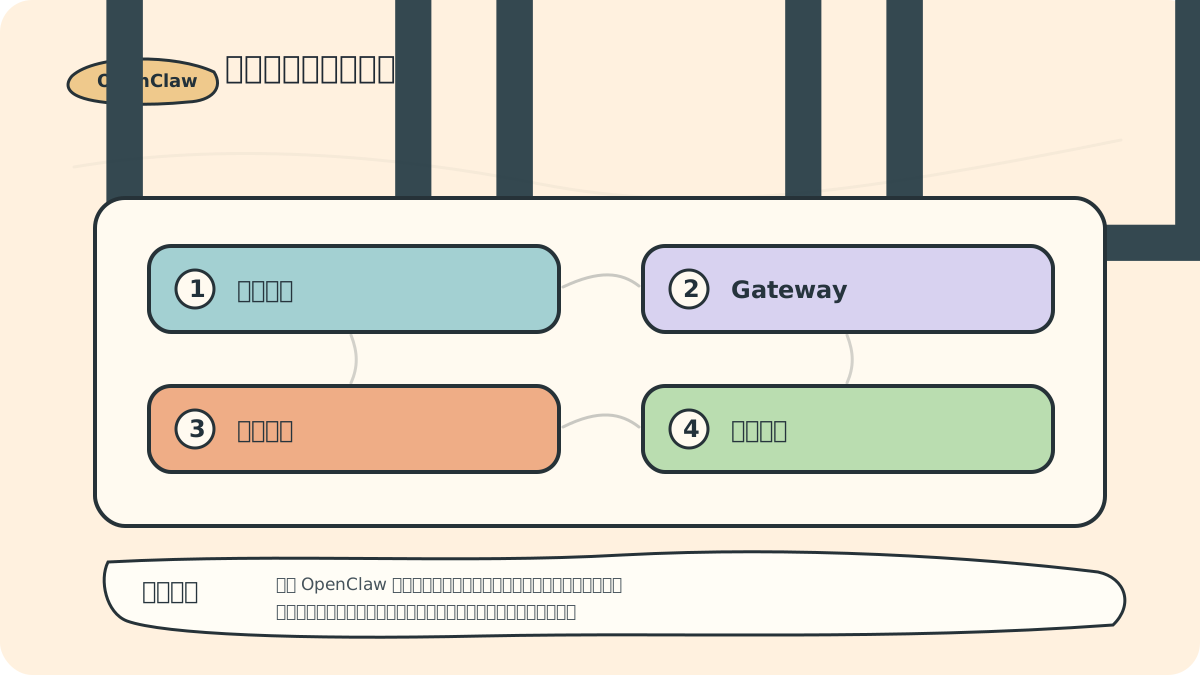
After the first launch, resist the urge to integrate multiple platforms immediately. Keep only one message input channel and one model active. Once this minimal loop is stable, gradually add memory, skills, and workflows.
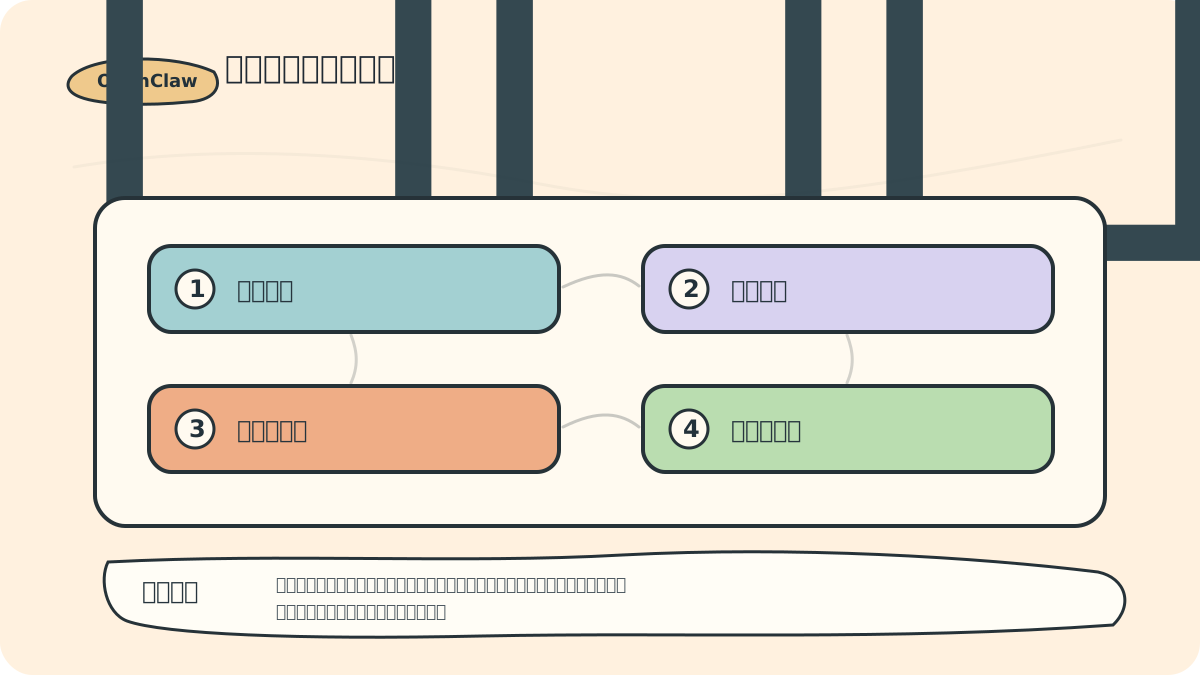
1. System Requirements
According to the official README, OpenClaw recommends Node.js v24—or Node.js v22.16 or later. It supports macOS and Linux natively, and Windows via WSL2. Native Windows support is possible but experimental; if you’re new to OpenClaw, WSL2 is strongly recommended for stability.
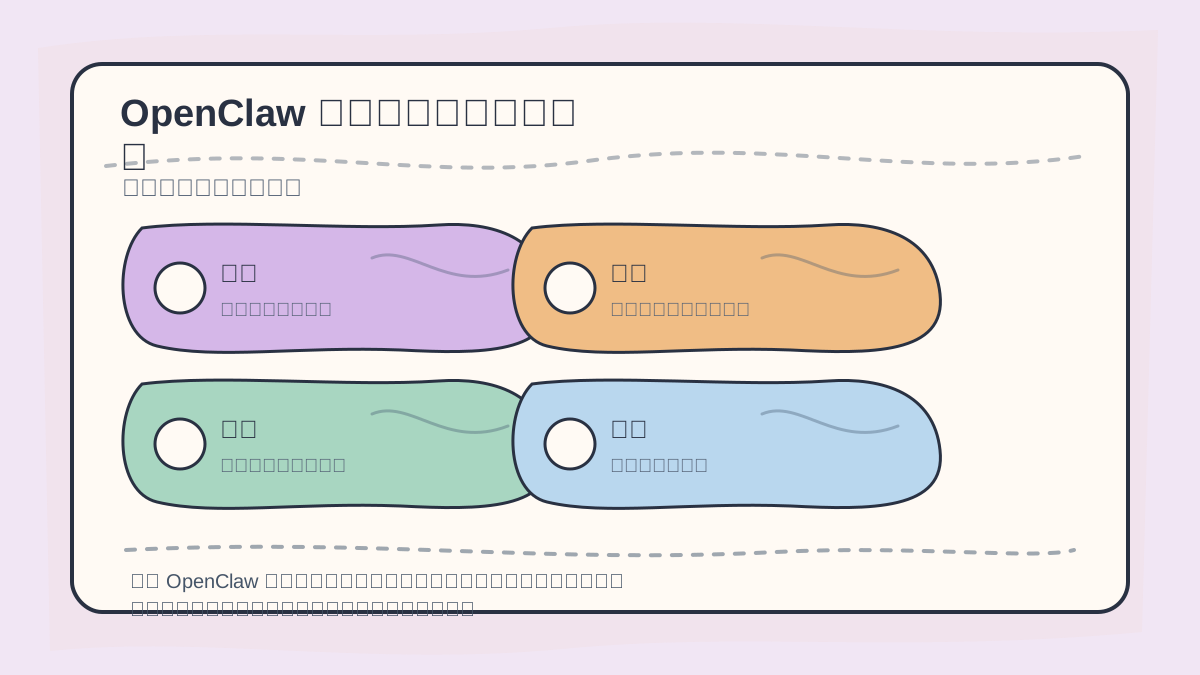
After installation, don’t just check whether the process starts. Instead, validate the entire stack using a minimal task: confirm configuration correctness, tool invocation, log generation, and output integrity—this forms the foundation for future expansion.
Before installing, prepare:
- Node.js v24 or v22.16+
- npm, pnpm, or bun
- A working large language model (LLM) account or subscription
- A dedicated workspace directory for OpenClaw
- Platform-specific credentials and authorizations (if integrating chat platforms)
2. Recommended Installation Method
The official recommendation is global installation via npm:
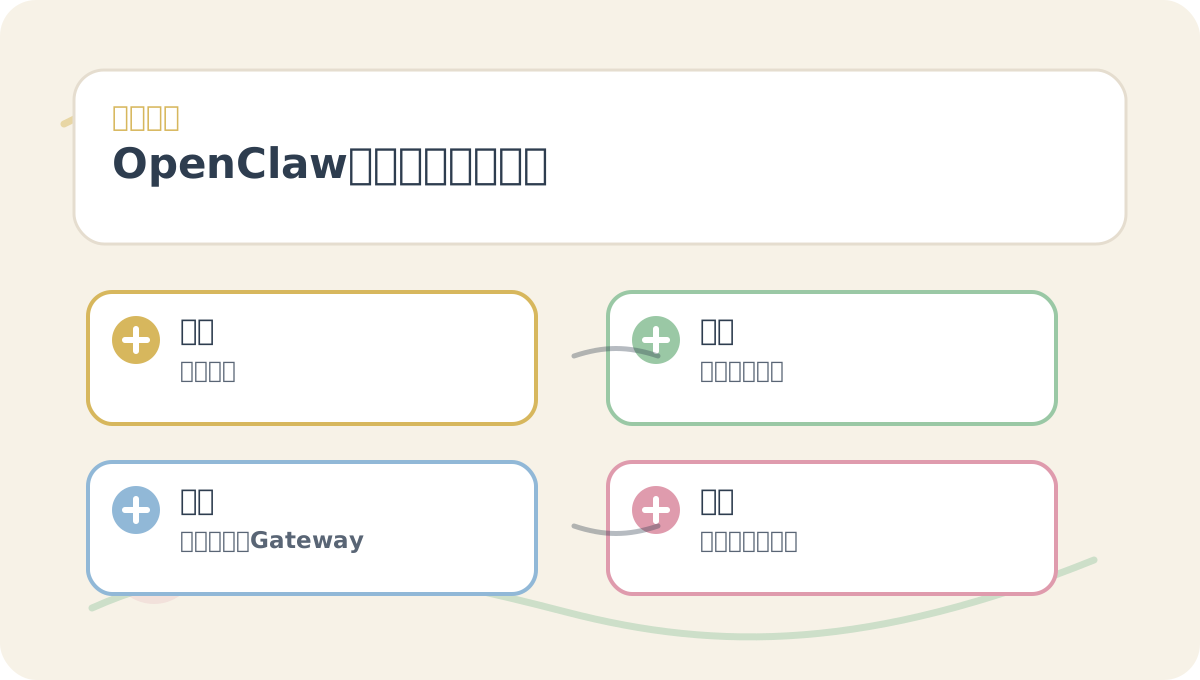
While reading “2. OpenClaw Installation and First Launch”, start by reviewing the tasks, concepts, exercises, and decision points illustrated in the accompanying figures—then return to the main text to fill in details. This helps you quickly assess which real-world scenario this content applies to.
npm install -g openclaw@latest
openclaw onboard --install-daemon
openclaw onboard guides you step-by-step through setting up the Gateway, workspace, channels, and skills. The --install-daemon flag installs the Gateway as a persistent background service.
If you prefer pnpm:
pnpm add -g openclaw@latest
openclaw onboard --install-daemon
3. First Gateway Launch
If you’d rather launch manually—not yet as a background daemon—run:
openclaw gateway --port 18789 --verbose
The goal here is simply to verify that the Gateway starts successfully. Once launched, don’t rush to connect all channels. First, inspect the logs for common issues: model authentication failures, port conflicts, missing configurations, etc.
4. Sending Your First Message
The official quickstart includes a CLI-based messaging example:
openclaw agent --message "Ship checklist" --thinking high
You can also test with a simple natural-language message:
openclaw agent --message "Explain what you can do right now, and do not call any external tools yet." --thinking low
If you receive a consistent, coherent reply, the model invocation pipeline is working end-to-end.
5. Run a Health Check
After installation, run:
openclaw doctor
This command scans for configuration risks, missing environment dependencies, and common misconfigurations. Re-run it after every upgrade, server migration, or channel configuration change.
6. Minimal Configuration Path for Beginners
Follow this sequence when configuring:
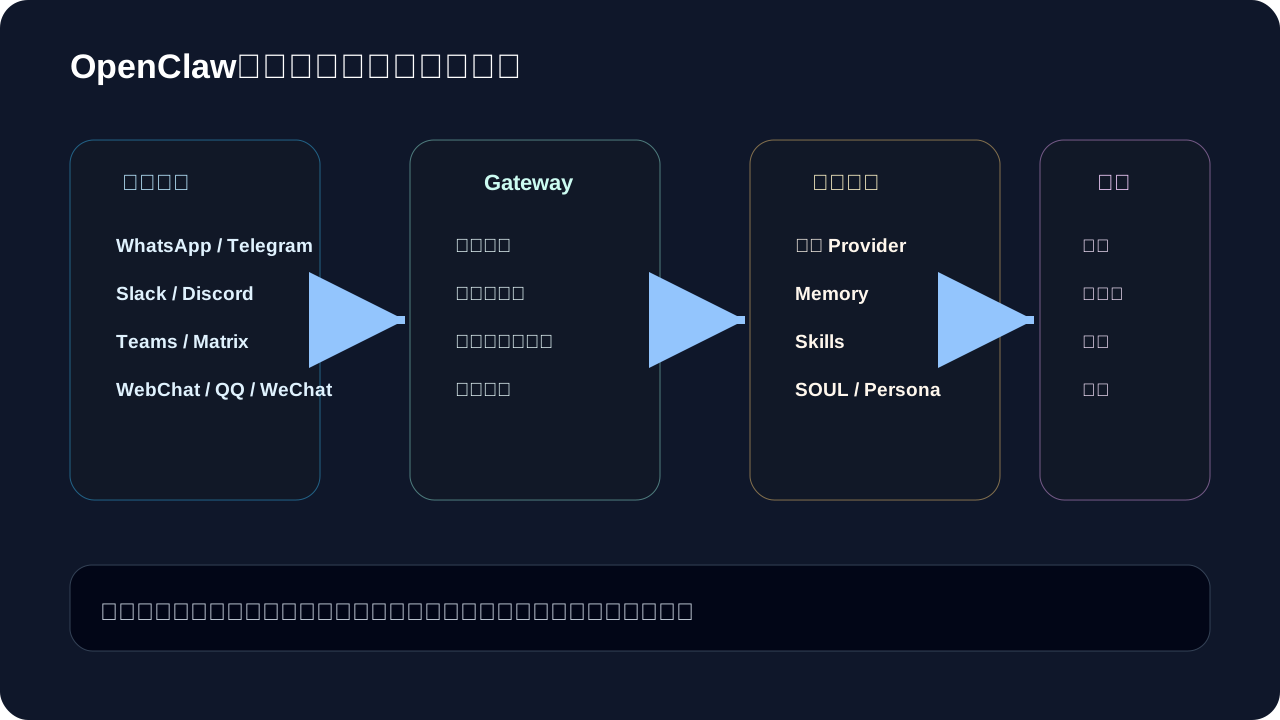
- Configure only one model.
- Configure only one chat input channel.
- Restrict access to a single trusted user account.
- Start with read-only tasks only.
- Verify logging behavior and rollback procedures.
- Gradually enable tools—files, browser, email, calendar—one at a time.
This path takes slightly longer—but delivers greater stability. Once an AI assistant connects to real accounts, security boundaries matter far more than feature count.
7. Common Issues
7.1 “Command not found”
Confirm your global npm binary directory is in your PATH:
npm bin -g
Or try opening a fresh terminal session.
7.2 Gateway fails to start
Common causes include:
- Port already in use
- Node.js version too low
- Missing or malformed configuration files
- Incorrect model authentication credentials
First, run:
openclaw doctor
Then review the Gateway logs.
7.3 Slow or unstable model responses
OpenClaw is an execution-oriented assistant—the context for each task is typically richer and more complex than standard chat. Use a model you trust and rely on daily. Avoid models with limited context windows or unreliable tool-calling capabilities for demanding tasks.
After completing “2. OpenClaw Installation and First Launch”, try adapting it to your own use case. Focus especially on whether inputs, processing steps, and outputs align clearly.
To apply “2. OpenClaw Installation and First Launch” to your own workflow, begin by narrowing the scope—validate just one critical decision point.
8. Summary
This section has exactly one objective: get OpenClaw running, successfully invoke a model, and receive its first reply.
In the next section, we’ll dive into how OpenClaw truly works—its core system components: channels, models, memory, skills, and tools.
Apply This Lesson
Turn this article into AI software, model, API, and security decisions.
English Article FAQ
Use this article as evidence before choosing AI tools
How should I use this AI Tutorials article?
Use it as the implementation or learning layer, then connect the idea to AI software buyer guides, tool comparisons, benchmarks, API choices, and security checks before making a production decision.
Is this English article different from the Chinese original?
The English edition is localized for global AI readers while preserving the original diagrams, screenshots, prompts, code examples, and source context from the Chinese article.
What should I read after OpenClaw Zero Setup and First Launch?
Continue with AI Software Buyer Guides, AI Tools Workbench, Best AI Coding Agents, AI Model Benchmarks, OpenAI vs Anthropic API, or LLM Security Tools depending on the decision you need to make.
Can this article alone choose an AI product or model?
No. Treat the article as evidence and context, then validate fit with pricing, privacy requirements, integration effort, benchmark results, workflow tests, and fallback planning.
Continue