English translation
3 Steps to Deploy DeepSeek Locally
AI Article Decision Snapshot
Turn the lesson into workflow, model, budget, and security checks before choosing tools.
Use this quick snapshot before leaving the article. It keeps the next search tied to practical AI software, model/API, cost, privacy, and implementation questions.
Workflow fit
Identify the real job behind the article: coding, research, document review, support, analytics, content, or internal automation.
Model or tool decision
Decide whether the next step is a software shortlist, an AI tool comparison, an API platform choice, or a model benchmark.
Budget and usage signal
Estimate seats, API calls, prompt volume, retries, review time, and fallback work before assuming the workflow is cheap.
Security and privacy review
Check whether source code, customer data, private documents, prompts, logs, or embeddings will enter the AI workflow.
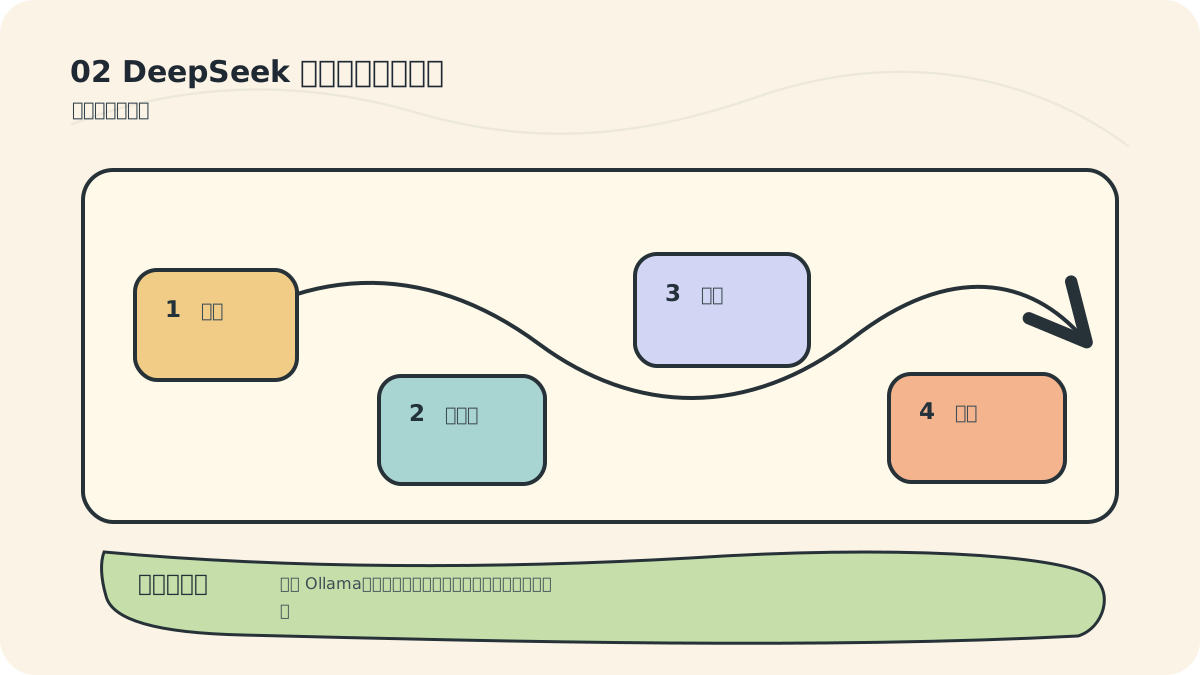
This guide focuses exclusively on the minimal, most direct path to success. On your first deployment, resist the urge to swap models, change ports, or integrate a knowledge base—first verify that ollama run deepseek-r1:1.5b works and produces correct responses. Only once this core loop is fully functional do subsequent extensions become meaningful—and measurable against a reliable baseline.

If a command fails, check in order:
- Whether Ollama is installed correctly;
- Whether the model name is spelled exactly right (e.g.,
deepseek-r1:1.5b); - Whether your terminal has network access (for downloading) or local filesystem permissions (for loading the model).
Do not jump straight to reinstalling your OS—or even Ollama itself. Many failures stem from simple oversights: e.g., forgetting to restart the terminal after installation, or launching ollama run before the model download completes.
Three Steps to Run DeepSeek Locally
You only need three straightforward steps to run DeepSeek locally and begin conversing with it.
Step 1: Use Ollama to manage large language models. Ollama is lightweight, intuitive, and installable with a single click. The installer walks you through mostly “Next” prompts—no complex configuration required.
If you’re unsure where to download it, simply reply ollama in the backend of my WeChat official account to receive the download link directly. You can scan the QR code below with your phone to access my WeChat account instantly:

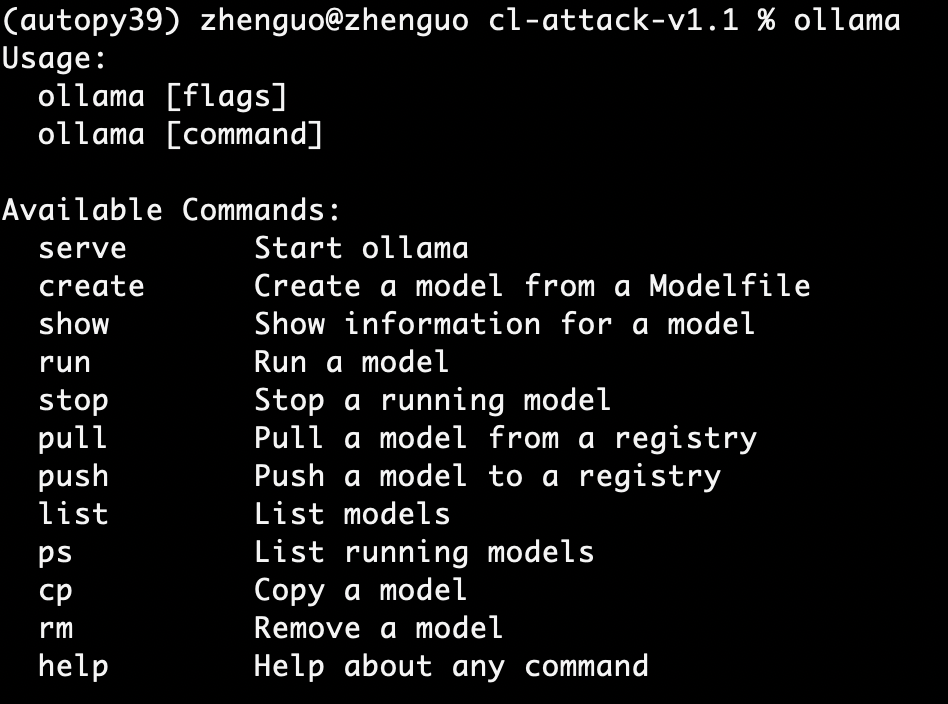
After installation, open a command-line window (Terminal on macOS/Linux, Command Prompt or PowerShell on Windows), type ollama, and press Enter. You’ll see a list of ~10 built-in commands—enough to manage all your local LLMs effectively:
Step 2: In the same command window, run:
ollama pull deepseek-r1:1.5b
This downloads the deepseek-r1 model (1.5-billion-parameter version) directly to your machine:
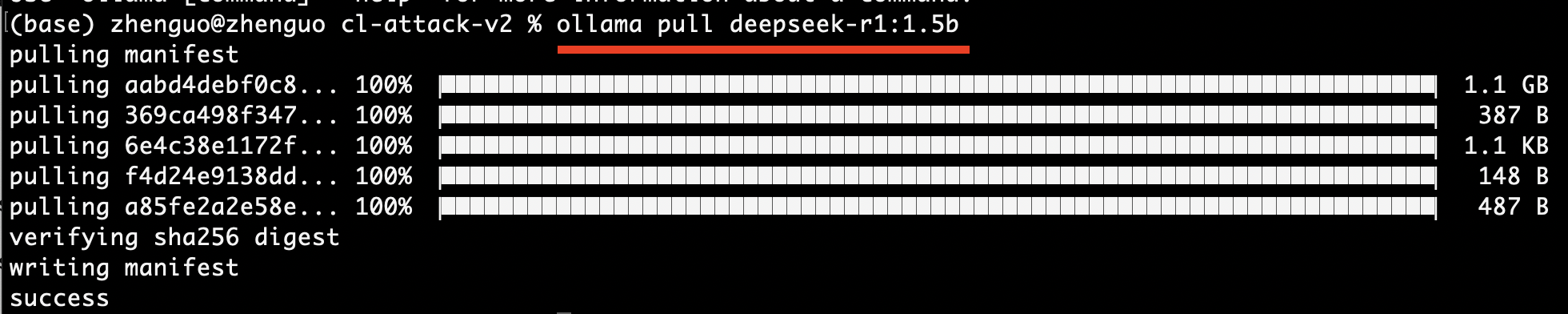
At this point, the DeepSeek model is fully downloaded and ready on your local machine.
Step 3: Launch an interactive chat session by running:
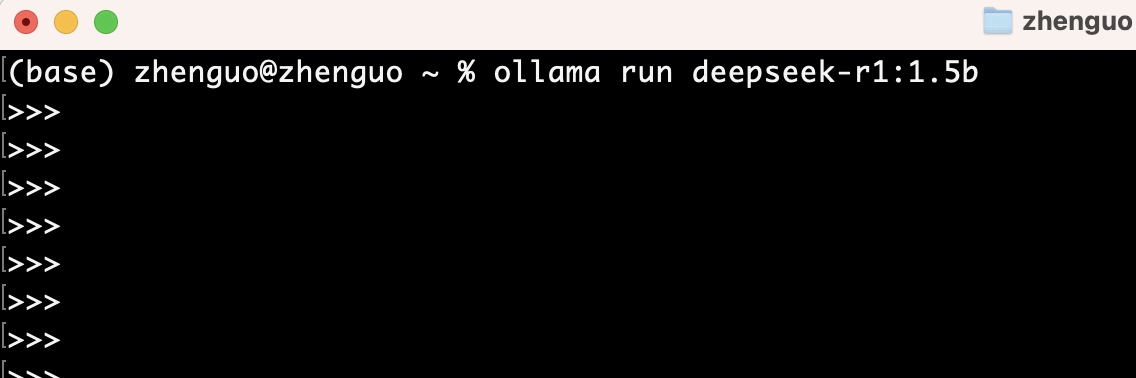
ollama run deepseek-r1:1.5b
(Use Command Prompt on Windows; Terminal on macOS.) The interface will load quickly—ready for conversation:
Demo: Using DeepSeek Locally
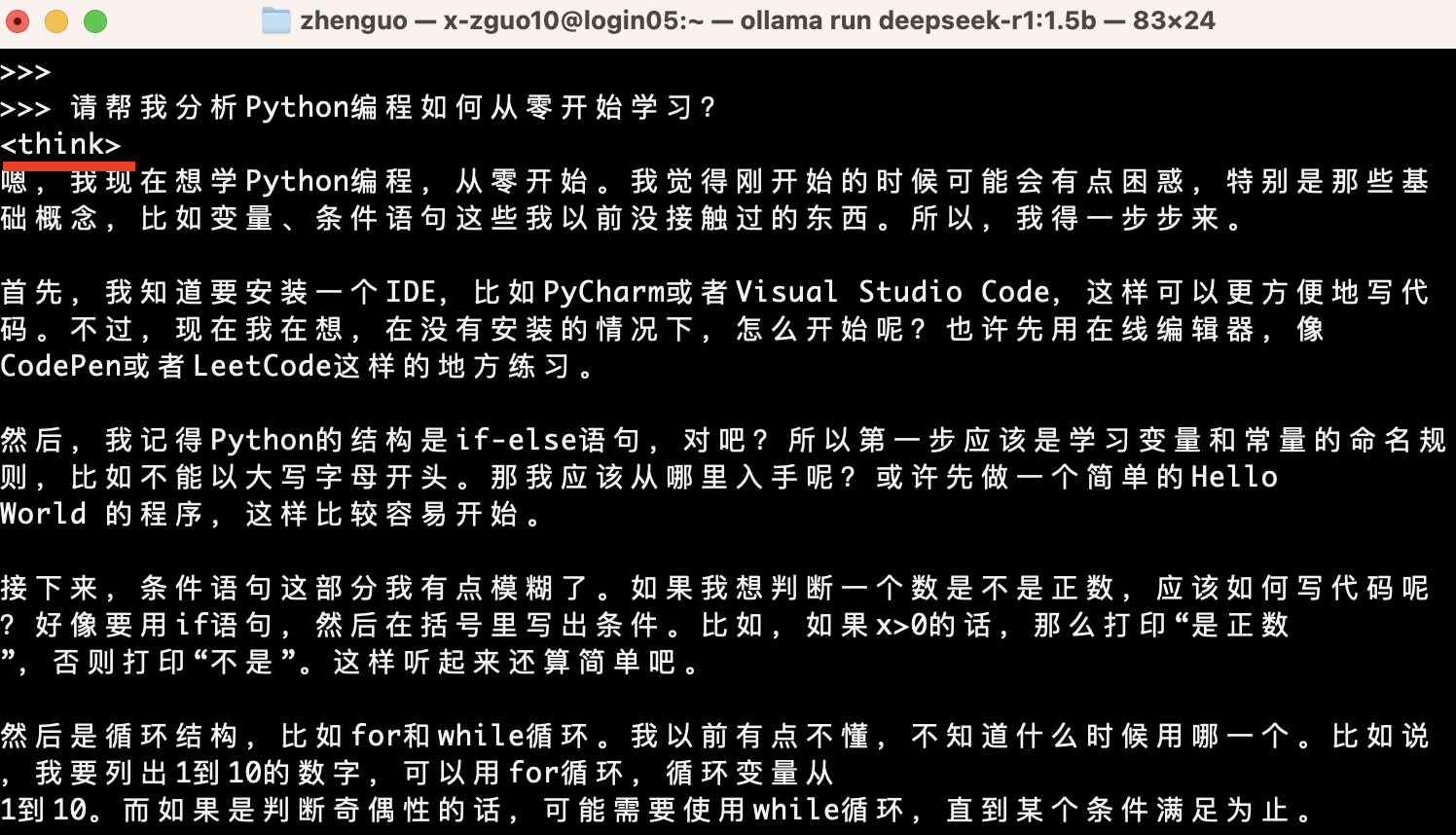
Once the above setup is complete, try asking DeepSeek a question—for example: “Please help me analyze how to learn Python programming from scratch.”
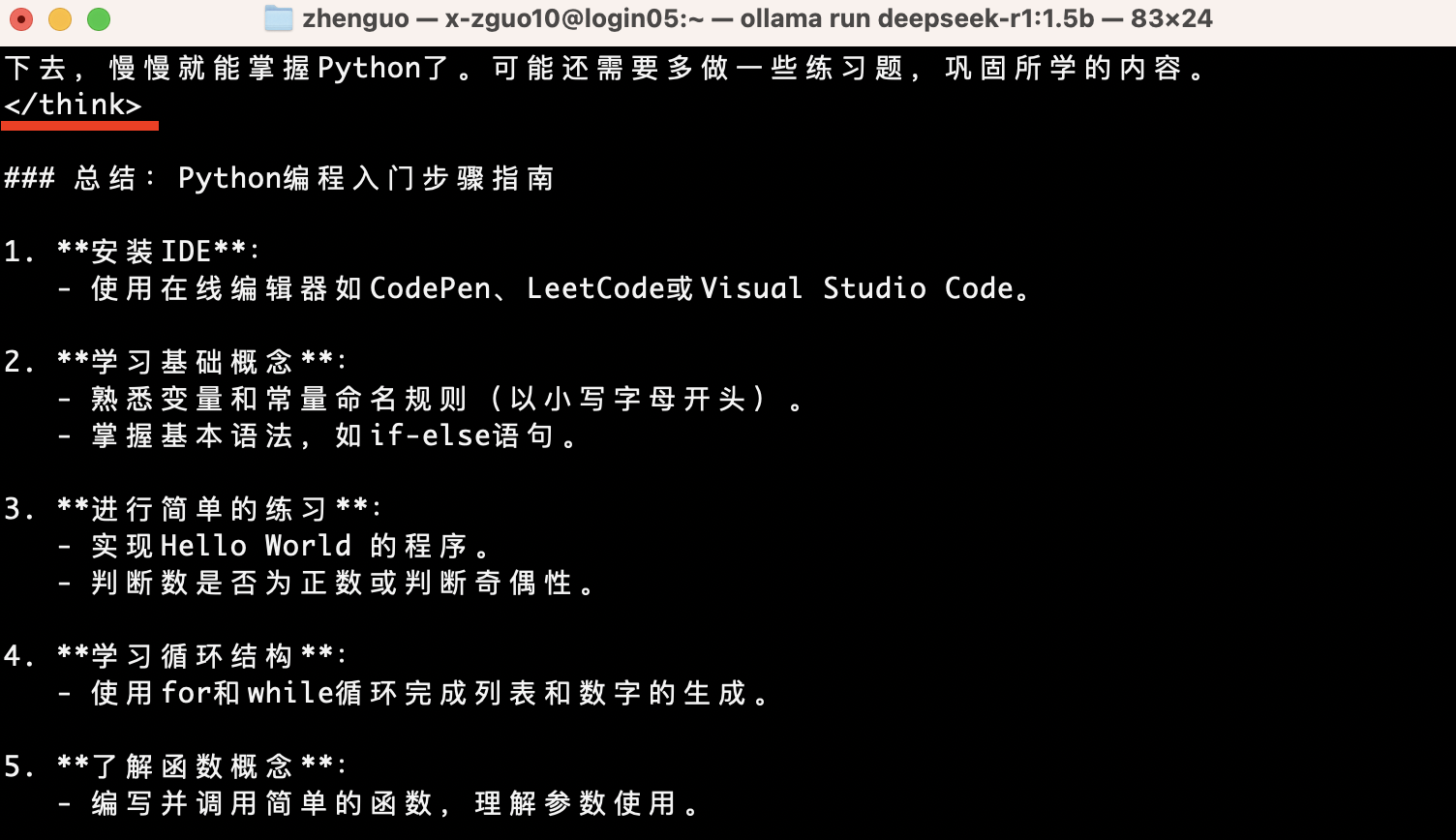
Below is its response. Note the structured output: it begins with a think tag containing its internal reasoning process (not part of the formal reply):
When you see the closing think tag, the reasoning phase is complete—and the next line delivers the final, polished answer:
Apply This Lesson
Turn this article into AI software, model, API, and security decisions.
English Article FAQ
Use this article as evidence before choosing AI tools
How should I use this AI Tutorials article?
Use it as the implementation or learning layer, then connect the idea to AI software buyer guides, tool comparisons, benchmarks, API choices, and security checks before making a production decision.
Is this English article different from the Chinese original?
The English edition is localized for global AI readers while preserving the original diagrams, screenshots, prompts, code examples, and source context from the Chinese article.
What should I read after 3 Steps to Deploy DeepSeek Locally?
Continue with AI Software Buyer Guides, AI Tools Workbench, Best AI Coding Agents, AI Model Benchmarks, OpenAI vs Anthropic API, or LLM Security Tools depending on the decision you need to make.
Can this article alone choose an AI product or model?
No. Treat the article as evidence and context, then validate fit with pricing, privacy requirements, integration effort, benchmark results, workflow tests, and fallback planning.
Continue